You’ve got a search bar on your website for a very good reason: people use it when they can’t find what they need by just clicking around. But do you pay attention to what they are searching for? The terms people type into your site search can tell you about content gaps, user intent, and where your website navigation isn’t working as well as it should – things you’d likely not discover otherwise.
GA4 can track your site search automatically, yet you’ll have to do a little extra to find and analyze those search terms. Here’s how to get to that data and benefit from it.
What does site search tracking show you?
Site search refers to the search feature on your website, not the Google searches that brought visitors there (though, if you’re interested in keyword data from Google Search or paid ads, check out our article on how to find keywords in GA4). Essentially, your internal site search data answers questions that your usual analytics won’t, such as:
-
What content are visitors searching for?
If lots of people are looking for the same thing but you don’t have a dedicated page for it, you have a content hole to fill. If they’re searching for items or services you don’t sell, perhaps you’ve found a new business opportunity.
-
Is your navigation working?
When people keep searching for pages that already exist on your site, it’s a strong hint that they are difficult to find. You should look at your menu structure, internal links, or how you’ve named your pages.
-
What terminology does your audience use?
The actual words visitors type in your search bar are how they describe your products or services – and it may be different from the terms you and your team use. Being mindful of this helps usability and your SEO.
-
Where is your site search failing?
If you find high search volumes for certain terms, yet people aren’t engaging much after, then either the results aren’t a good match, or the page people are directed to doesn’t give them what they’re looking for.
-
How do visitors refine their searches?
When someone does multiple searches in a single session, it shows how useful the first set of results was. High search refinement rates indicate either that the first results weren’t great or that your categories aren’t very clear.
Pre-configurations
Before you can analyze search terms, GA4 needs to know how to track them. The good news is that if you’re using Enhanced Measurement (which is enabled by default), GA4 tracks site search automatically through the view_search_results event.
To make sure this is properly set up before moving forward, here’s what you need to check:
-
Enhanced Measurement must be enabled
-
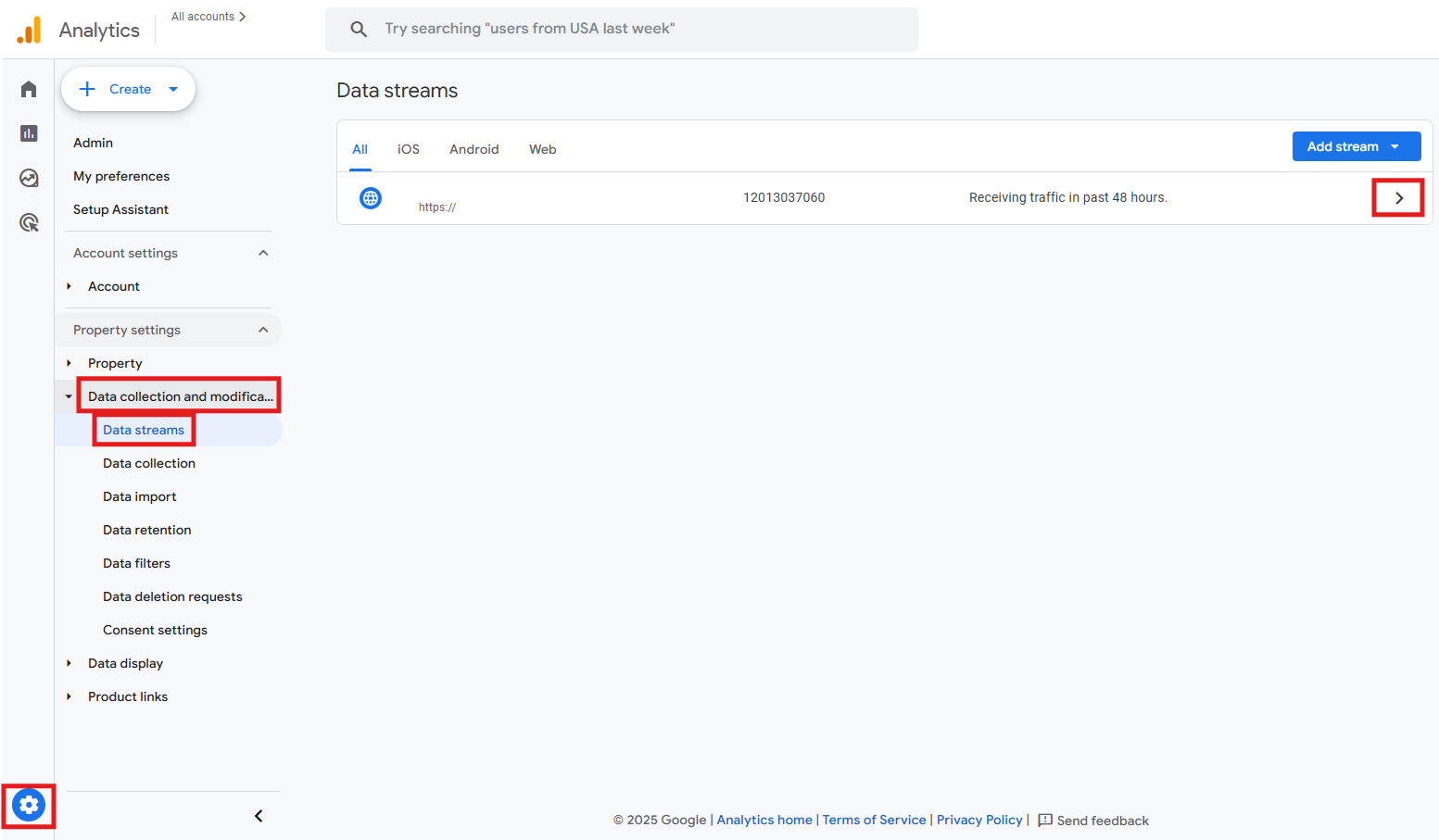
Go to Admin > Data collection and modification > Data streams > select your web stream.
-
Click the gear icon.

-
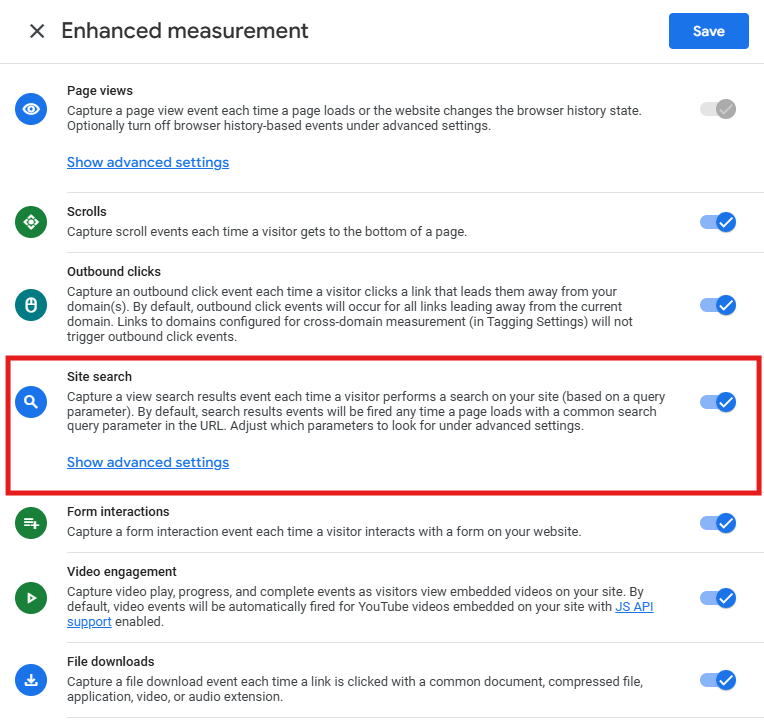
Look for Site search in the Enhanced Measurement settings and make sure it’s turned on.
-
-
Identify your website’s search parameter
Run a search on your website and look at the URL. If your search results page shows something like “yoursite.com/search?q=analytics”, then “q” is your query parameter. Take note of what it is, because you’ll need it in the next step.
-
Verify the query parameter matches what your website actually uses
-
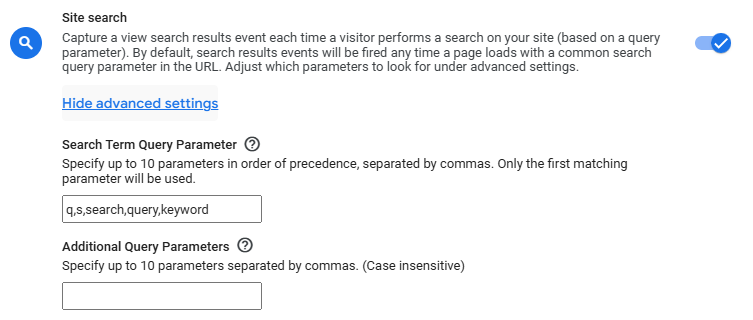
In the Enhanced Measurement settings where you finished step 1, click Show advanced settings under Site search.

-
Check if the query parameter matches what your website actually uses. The common query parameters GA4 recognizes by default are: q, s, search, query, keyword. If your website uses a different parameter (like term, find, or searchterm), you’ll need to add it manually in the Additional Query Parameters field.
-
-
Verify that tracking is working with DebugView
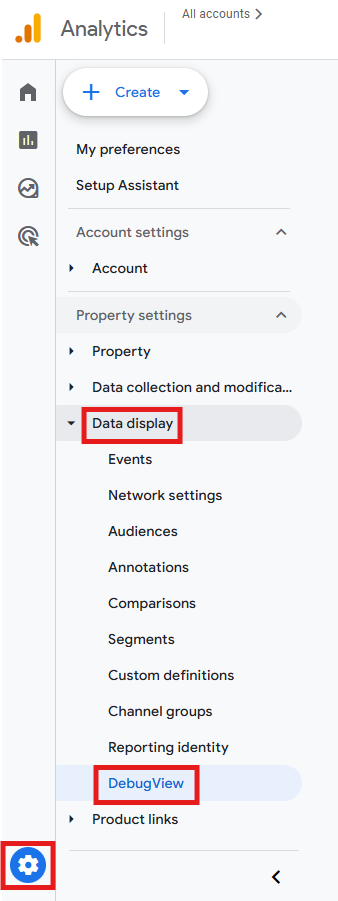
After enabling site search tracking, get real-time confirmation that it’s working by going to Admin > Data display > DebugView. Search for something on your website and then look for the view_search_results event. Click it and verify the search_term parameter shows your search query. If you see it, your tracking is correctly configured.
Finding search terms in standard GA4 reports
GA4 tracks the site search event (view_search_results), but by default, standard reports only show you how many searches happened, not what people actually searched for. To make search term data visible in standard reports, you’ll need to create a custom dimension:
-
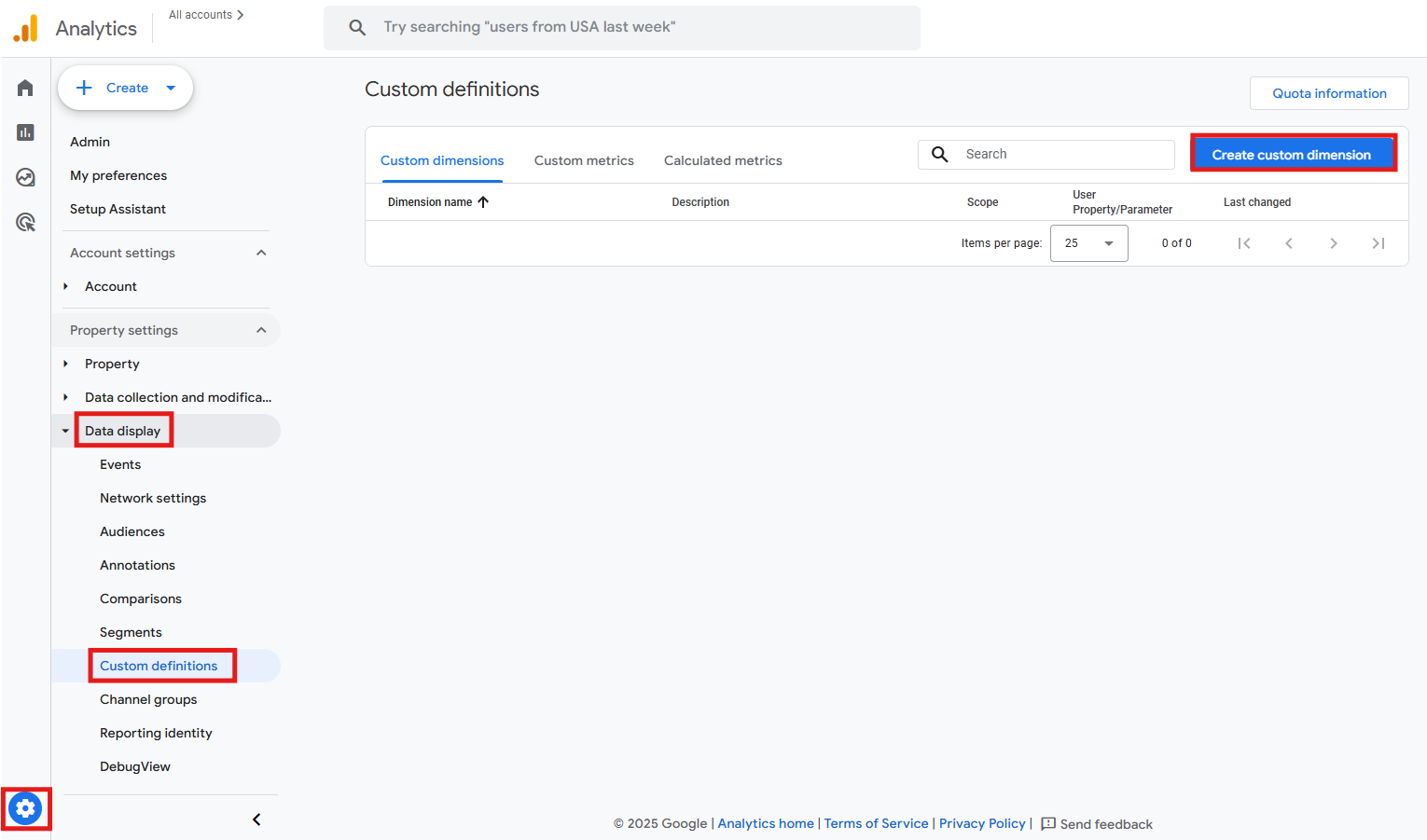
Go to Admin > Data display > Custom definitions > Create custom dimension.
-
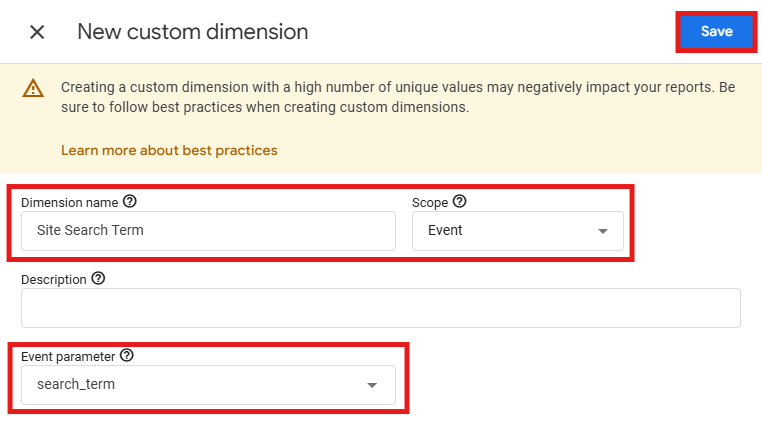
Enter these settings:
- Dimension name: Site Search Term (or whatever label makes sense for you and your team).
- Scope: Event.
- Event parameter: search_term (this must match exactly, since it’s the parameter GA4 sends with every view_search_results event).
Then click Save. Wait 24-48 hours for data to start appearing. Remember that custom dimensions aren’t retroactive, so you’ll only see data from the moment you created the dimension forward.
-
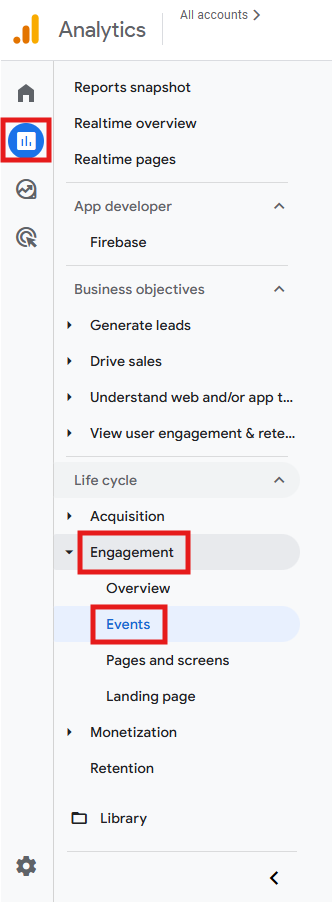
Once that’s done, navigate to Reports > Engagement > Events > click on the view_search_results event. You should now see a widget showing your most-searched terms.
Build a custom site search report
Standard reports give you a quick snapshot, but for more control over how you view and filter search term data, you need to build a custom report. Here’s how to do it:
-
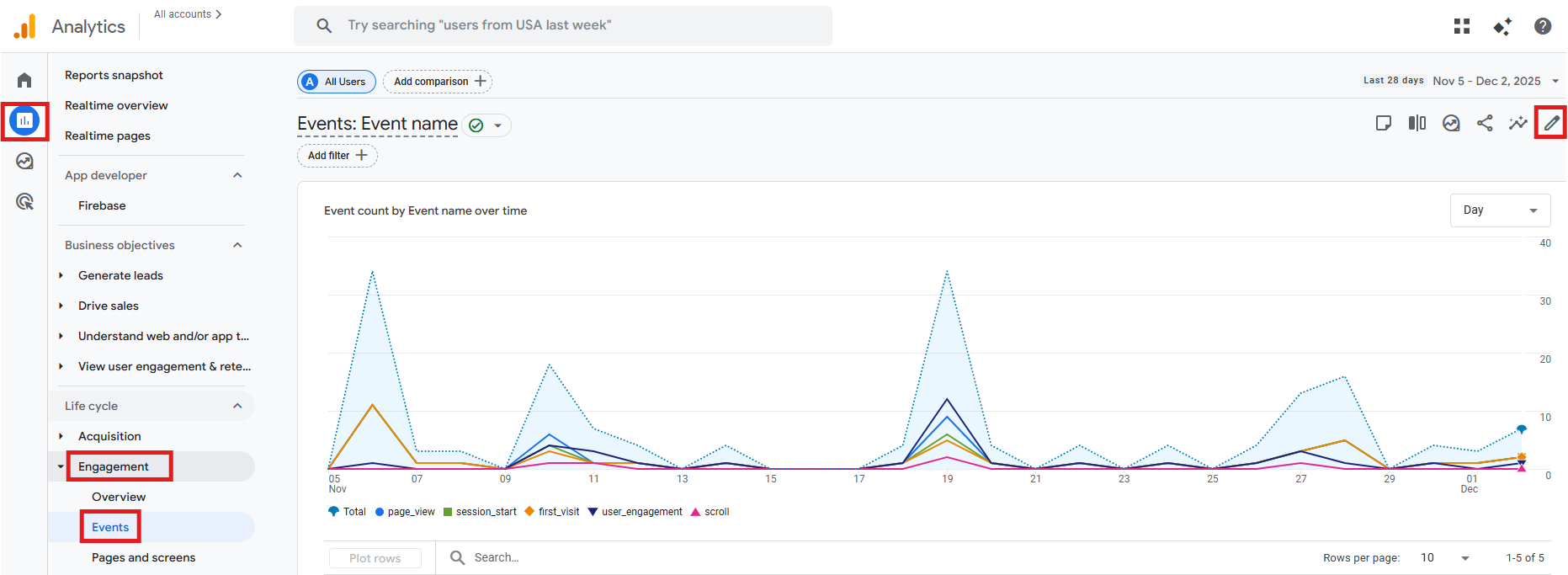
Start in Reports > Engagement > Events > click the pencil icon in the top-right corner. Don’t worry about overwriting, since you’ll save this as a new report.
-
Click Dimensions.
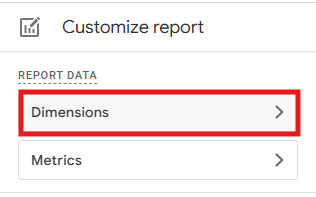
-
Remove “Event name” from the list. Add “Search term” instead and click Apply.
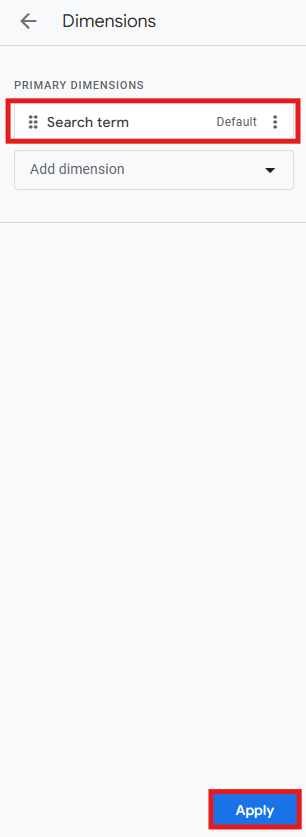
-
Under Metrics, keep “Event count”, “Total users”, and “Event count per active user”. These give you the volume and frequency of searches without cluttering the report. Apply the changes.
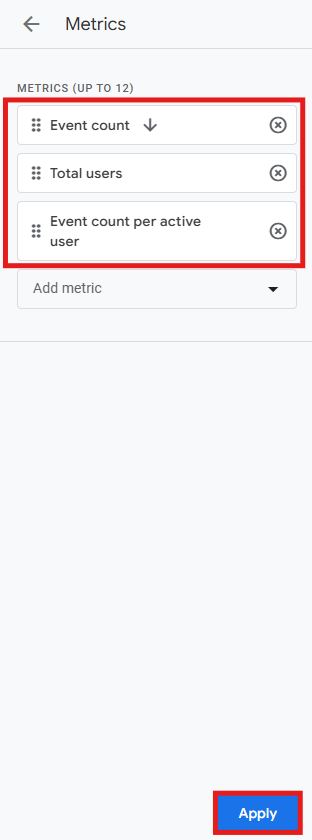
-
Now add a filter and set the following conditions:
- Dimension: Event Name.
- Match type: exactly matches.
- Value: view_search_results.
This isolates site search from all your other events.
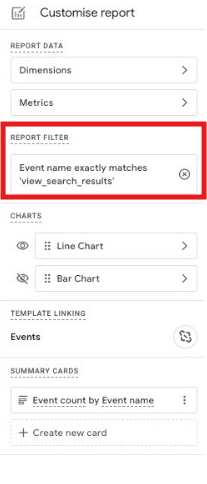
-
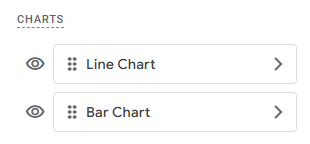
If there are charts you don’t need (like the bar chart), hide them by clicking the eye icon.
-
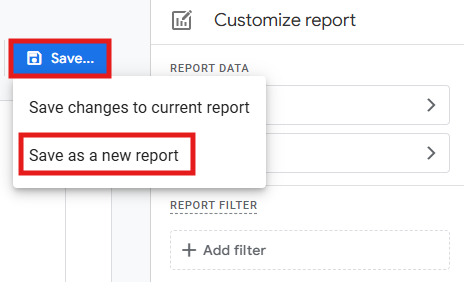
Click Save > Save as a new report. Name it something clear, like “Site Search Terms”.
-
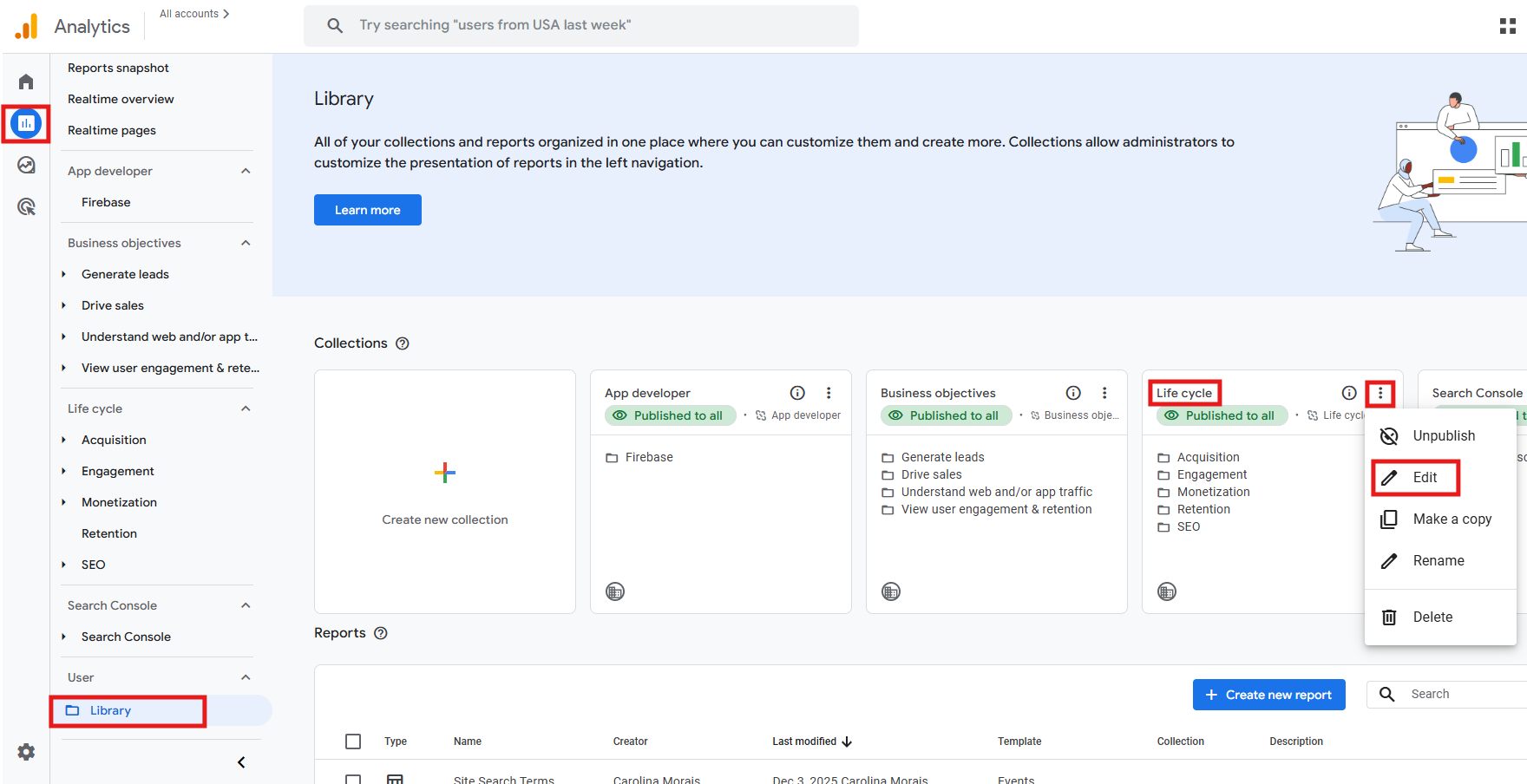
To publish this report, go to Reports > Library > find the Life cycle collection > click the three dots icon > Edit.
-
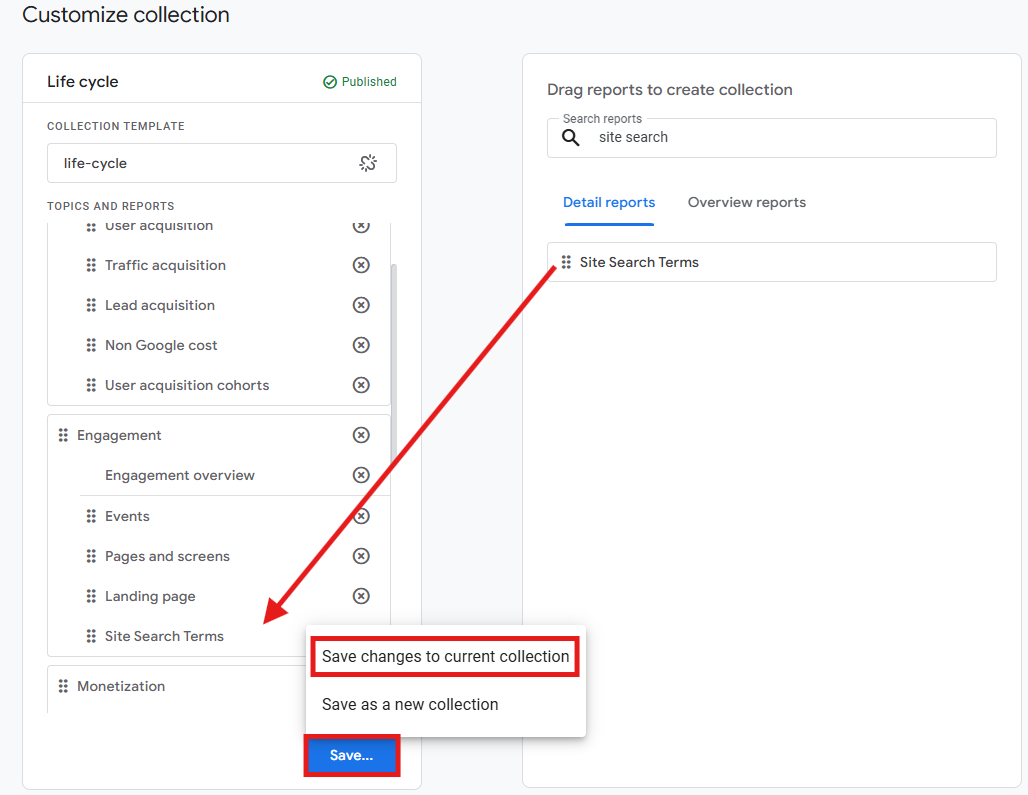
Drag your new Site Search Terms report into the Engagement section, then Save changes to current collection. From now on, everyone with access to the GA4 property will see “Site Search” under Reports > Engagement.
Use GA4’s Explorations for deeper analysis
For a detailed look at your data, use the Explore feature in GA4. It lets you investigate how searches relate to each other and identify patterns in ways the standard GA4 reports can’t. You can find answers to questions like: which search terms lead to key events (conversions)? What are people looking for on your site right before they leave? Here’s what to do:
-
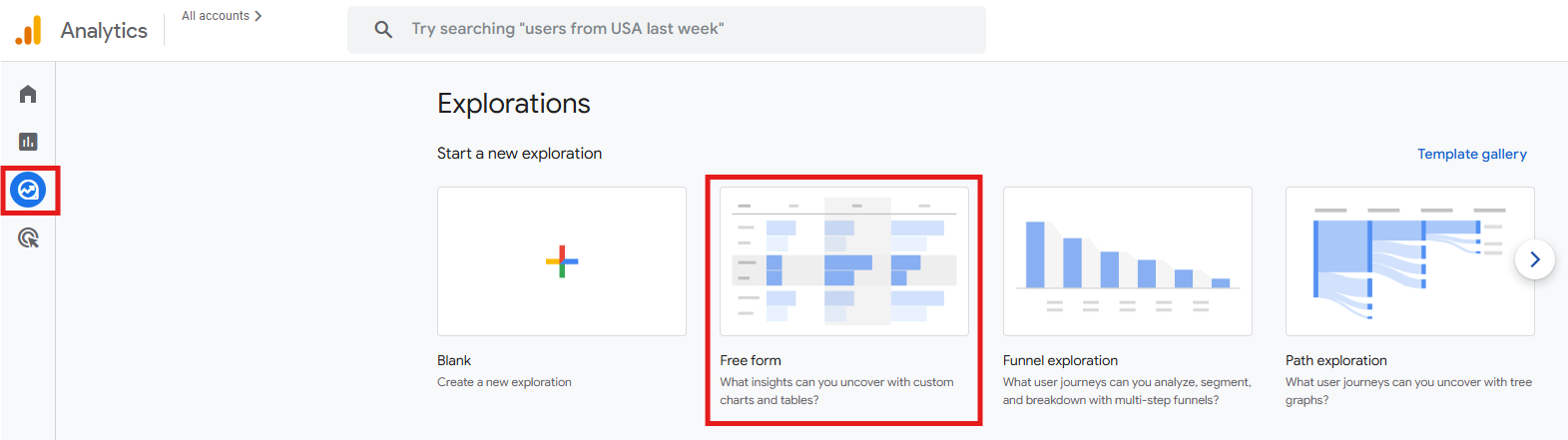
Go to Explore > Free Form.
-
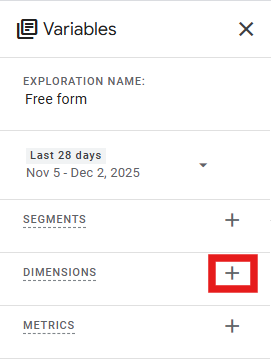
In the Variables column, you’ll notice GA4 pre-populates some segments, dimensions and metrics, so clean those out first. Then, click the plus icon under Dimensions.
-
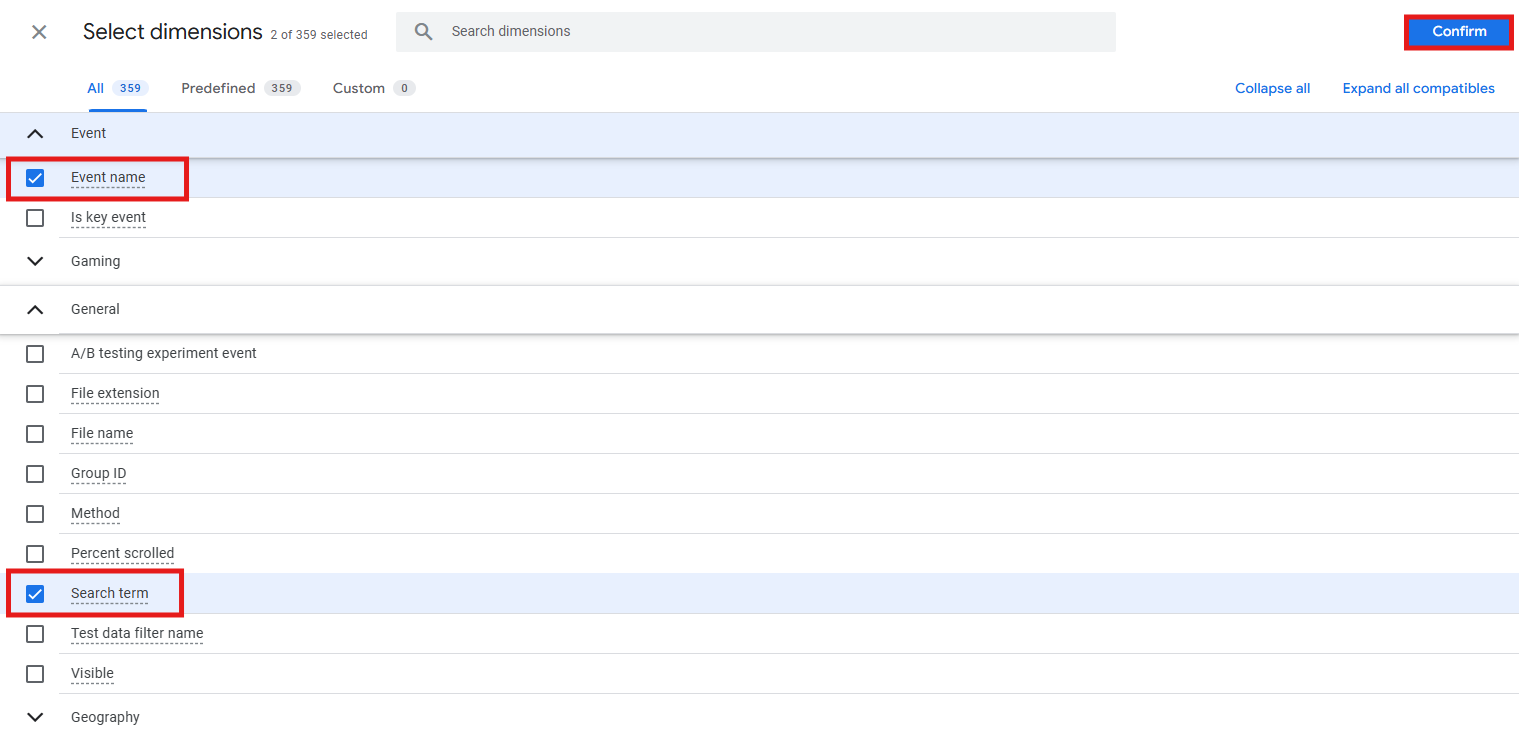
Find Search Term (unlike the custom dimension you created for standard reports, this dimension is available by default in Explorations) and select it. Do the same with Event name (we’ll need this dimension later on to create a filter). Then click Confirm.
-
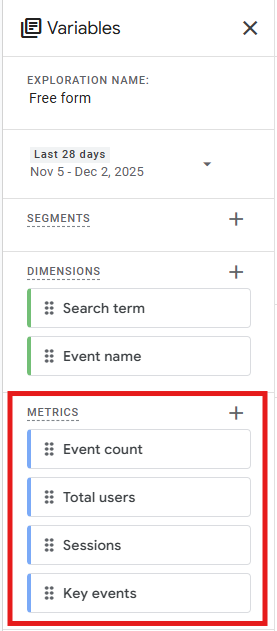
Under Metrics, make sure Event count is selected. You can also add metrics like Total users, Sessions, or Key events if you want to see how search behavior ties to outcomes.
-
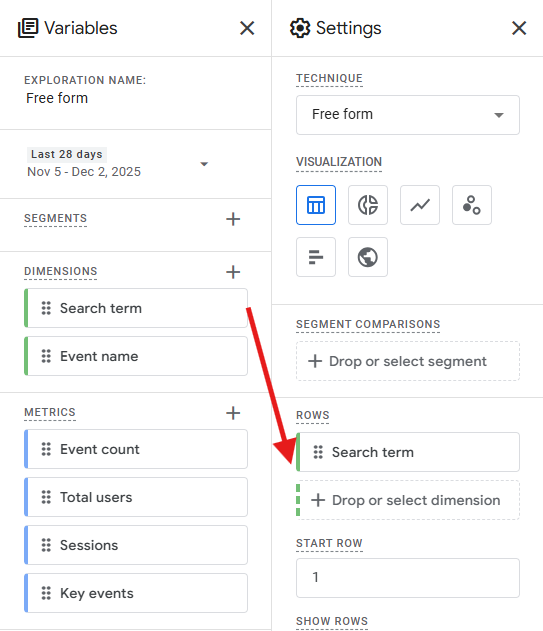
Drag the Search Term dimension into the Rows section under Settings. Remove any other dimensions that appear in Rows and clear out the Columns section entirely.
-
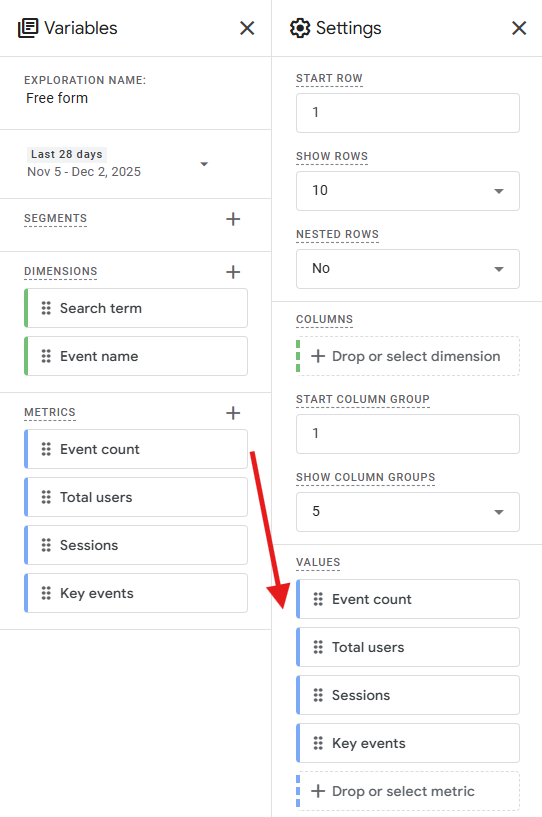
Then, drag the Event count metric into the Values section (and all the other metrics you wish to analyze).
-
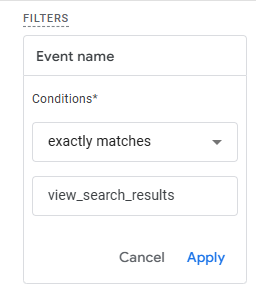
In Filters, set: Event name exactly matches view_search_results. This ensures you’re only analyzing site search data, not every event in your property. Click Apply.
-
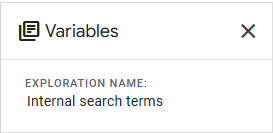
And that’s it! You’ll now see a ranked list of search terms with associated metrics. From here, you can add segments that make sense to you or secondary dimensions to explore how different user groups search differently. Before leaving, make sure you name your report something clear, like Internal search terms.
Common issues and how to fix them
If you’ve completed all the previous steps, but you still don’t see search terms in GA4, the issue is likely one of these:
| Issue | How to fix it |
|---|---|
| Site search is not enabled | Go to Admin > Data collection and modification > Data streams > Select your stream > Enhanced Measurement settings and make sure “Site search” is toggled on. If it’s off, GA4 won’t send the view_search_results event at all. |
| Query parameter mismatch | Go to Admin > Data collection and modification > Data streams > Select your stream > Enhanced Measurement settings > Site search. Make sure the “Search Term Query Parameter” field matches the actual parameter in your website’s search URLs. |
| Custom dimension is not created correctly | Check Admin > Data display > Custom definitions and verify the dimension exists. The “Event parameter” field must say exactly search_term (lowercase, with an underscore). Typos or incorrect casing will break it. |
| Events are showing in DebugView but not in reports | This is normal for new custom dimensions. DebugView shows real-time data, but custom dimensions can take 24-48 hours to appear in standard reports and Explorations. If you see the view_search_results event with the search_term parameter in DebugView, your setup is correct, so just be patient. |
| Your IP address is filtered out | If you’re testing by searching your own website, make sure you haven’t filtered out your IP address in GA4’s data filters. Go to Admin > Data collection and modification > Data filters and check if any filters are blocking your traffic. |
| Data thresholding is applied | If you have Google Signals enabled and low search traffic, GA4 may hide search term data to protect user privacy. In that case, you’ll see an orange warning icon in reports. Try expanding your date range to include more data, or temporarily switch to device-based reporting identity (Admin > Data display > Reporting identity). |
| You’re only seeing “last 30 minutes” data | The default event overview only shows recent searches. Create a custom dimension (as described earlier) to see historical data beyond the last 30 minutes. Without the custom dimension, you won’t see long-term search trends. |
Final thoughts
Site search data is pretty much direct feedback from your visitors – they’re explicitly telling you what they are looking for and highlighting where your website falls short. The technical setup is quite simple, so if you do as suggested, you’ll very quickly be able to track what people are searching for on your pages.
Moreover, if you’re interested in what Google searches initially brought people to your site, you’ll need to link GA4 to Google Search Console and Google Ads (we cover this in “How to see keywords in Google Analytics 4”). To get a full understanding of what people are trying to find, analyze the keywords from Google itself alongside the internal search terms on your website.
Once you get this data, check your search terms every week. Look for trends, patterns, searches you hadn’t anticipated, and searches that are very popular but have low engagement. Those are the things you should address in the near future.