Backlinks are strong indicators of your website’s relevance and authority, as well as potential traffic. The sooner you incorporate them into your strategy, the sooner you’ll see better results. If you’re using GA4 to track your website’s performance, you can also use it to assess the quality of your backlinks and then improve them.
This article will guide you through the best methods for finding, evaluating, and leveraging backlink (referral) traffic in GA4, allowing you to use them to truly expand your business.
What are backlinks and what makes them relevant?
Basically, backlinks are links on other sites that point to yours. But what’s the point of looking at them? There are many reasons:
-
Key ranking factor for search engines
Google and other search engines use backlinks to determine which websites have the best, most useful content and, therefore, which should be shown to more people. This is why backlinks are a crucial part of any Search Engine Optimization (SEO) strategy.
-
More qualified traffic
Backlinks bring potential customers to your site through relevant articles, listings, partner companies, or press coverage. These visitors, already well-informed by the page they’re coming from, tend to engage more with your site and are more likely to become customers compared to visitors who just randomly find you (generic traffic).
-
Better idea of people’s intent and interests
Which topics and pages are drawing in new people? Backlinks can reveal what visitors were expecting to find on your website and what issues they’re trying to resolve.
-
New opportunities
Once you understand why you’re getting backlinks, you can replicate what works with your most successful content to earn even more backlinks. You can also improve anything that isn’t performing well, such as the speed or organization of your landing pages.
How to track backlinks in GA4: step-by-step
In GA4, backlinks that drive sessions appear as referrals, so get familiar with this term. Here’s how to find and analyze them:
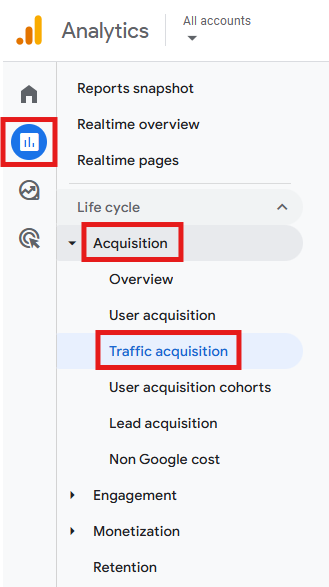
- Go to Reports > Acquisition > Traffic acquisition.
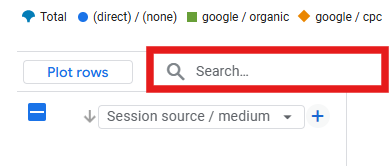
- Scroll down. Below the graphic, in the search bar, write referral to focus on backlink traffic.
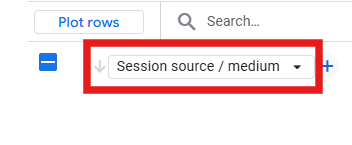
- Below the search bar, change the primary default channel group to Session source / medium or Session source, and you’ll get a list of all your referrals or backlinks.
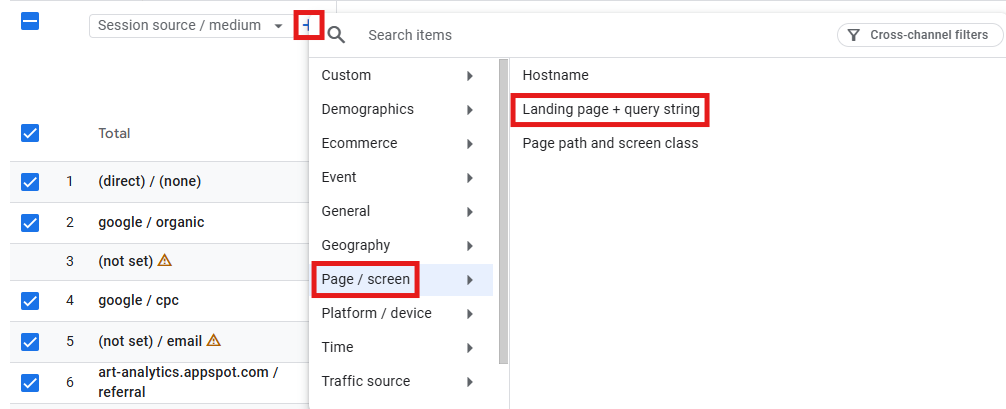
- To see where those referrals arrive on your website, you can add a secondary dimension by clicking on + > Page / screen > Landing page + query string.
- On the right, you can review metrics like Sessions, Engaged sessions, Engagement rate, Key events, among others.
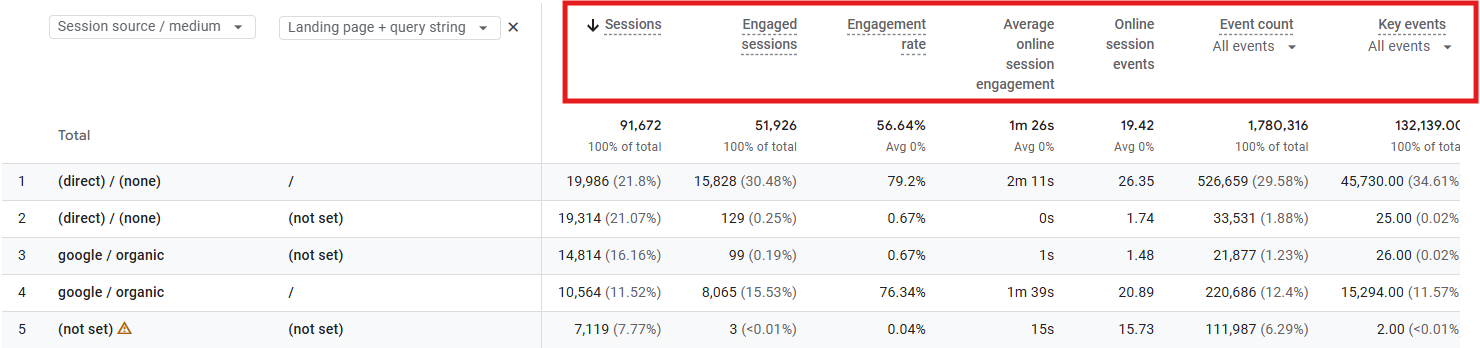
Keep in mind that standard reports only display domains. To see the full referring page URL, you need to use the Explore feature in GA4:
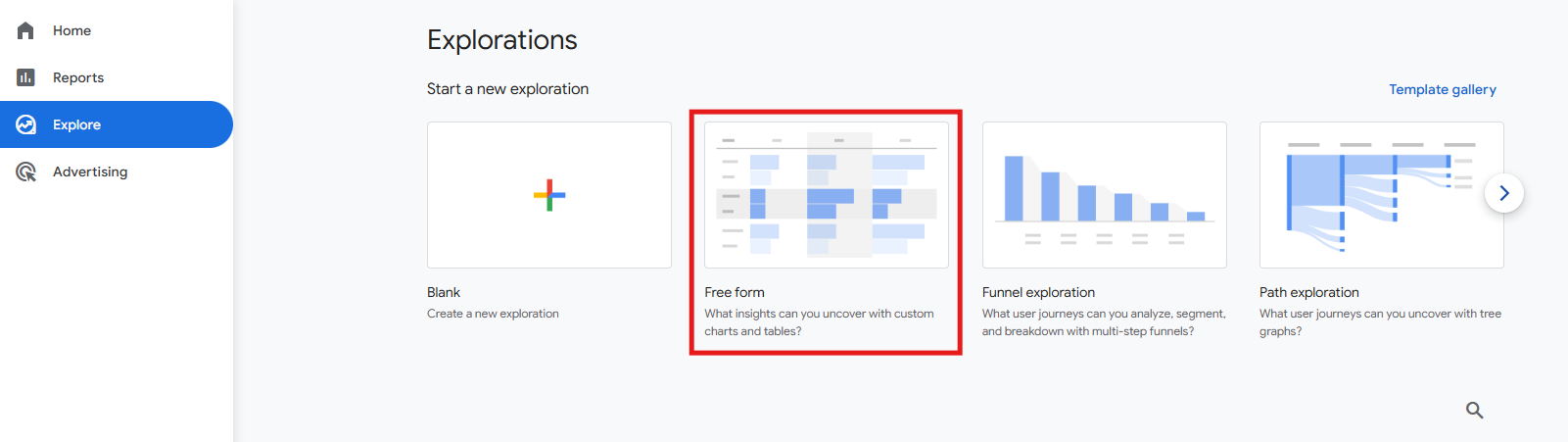
- Go to Explore > Free form.
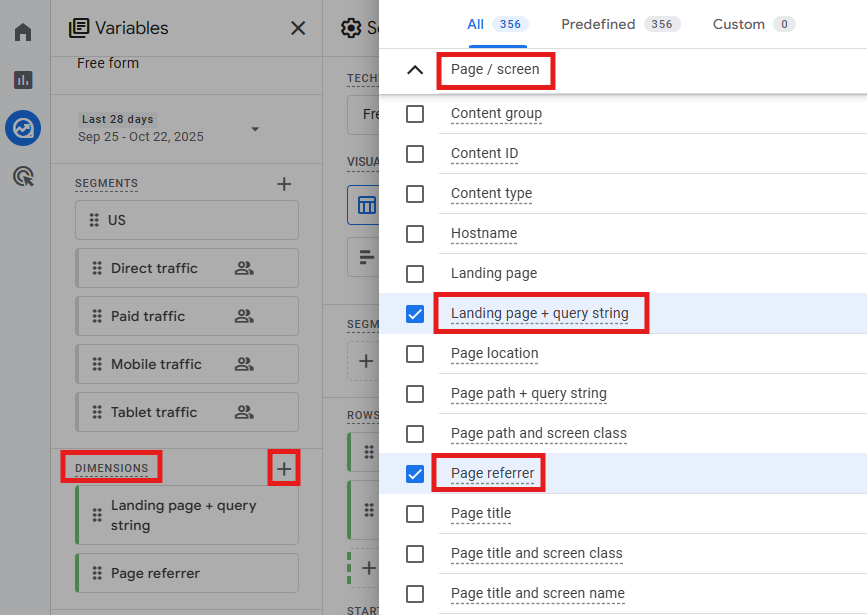
- Under Dimensions, add Page referrer and Landing page + query string. You can use the search bar to make it easier.
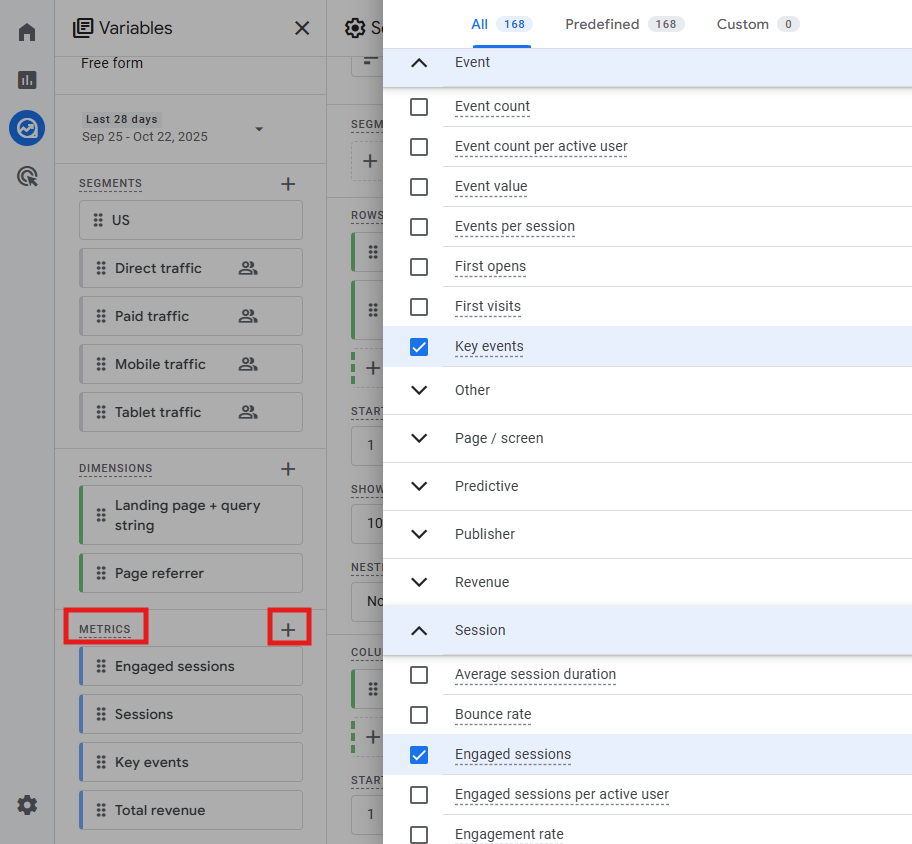
- Under Metrics, add Sessions, Engaged sessions, Key events, Total revenue, and others you might want.
- In the Settings column, drag Page referrer and Landing page + query string to Rows. Add your metrics to Values.
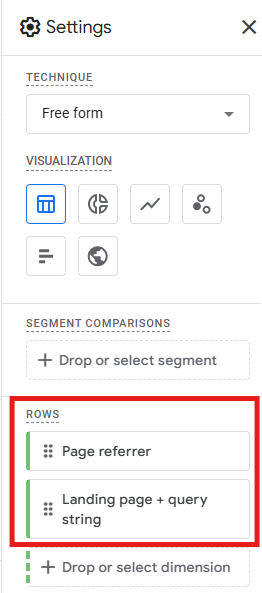
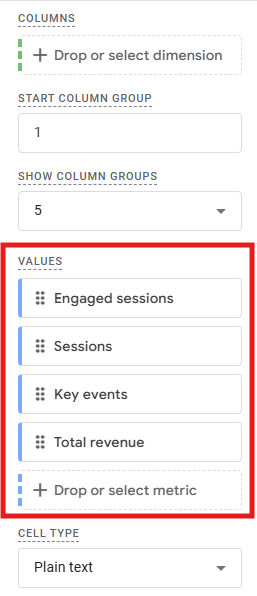
Keep in mind: GA4 may not always display the full referrer URL due to privacy or technical reasons. Some pages or traffic might appear as blank or only show the domain.
Tips to improve referral traffic
In the traffic acquisition report we just mentioned, notice the referrals that are either bringing users or that have strong engagement (good average engagement time per session / engaged sessions). Also, note the content/pages that perform best for referral traffic.
You can use these insights to:
- Reach out to websites/partners that already send engaged users and reinforce that partnership.
- Look for new referrals similar to those you already get. Contact them and try to establish collaboration.
- Replicate winning formulas by producing follow-up, complementary content around the pages/themes that already attract good referrals.
- Improve pages that drive a good volume of referral clicks but have poor conversion, since they may be neglecting user experience. Work on increasing page speed, mobile experience, headline clarity, form intuitiveness, etc.
- Build remarketing audiences from referrals that did not convert, so you can retarget them with a new, personalized offer (you can only do this if you’ve linked your GA4 property to a Google Ads account).
What to do with “bad” backlinks?
Not all referrals are useful; some artificially inflate your figures or incorrectly claim credit for people who reached your website. What kinds of backlinks are, therefore, “bad”, and what do you do about them?
-
Self-referrals
If your reports show traffic coming from your own website, it’s probably due to incorrect analytics setup across different parts of your domain, faulty redirects, or landing pages that aren’t properly tagged.
-
Third-party payment (TPP) processors
Imagine someone purchasing an item on your e-commerce website. They go to the TPP’s site (like PayPal) to complete the payment and then return to you. That final step can trigger a new session, incorrectly showing the payment processor as the referrer, which can lead to a misleading understanding of the user journey.
-
Website-managed interactions
Similarly to what happens with TPPs, when a user is sent to a supplier’s website (booking platforms, help centers, and so on) to do something, then returns to your site, another unwanted referral can be recorded.
-
Spam referral
Spammers create so-called “ghost traffic,” which is fake traffic from bots, not actual visitors. They want you to visit their website and click on the links in your referral reports. So, be cautious of suspicious referrers you don’t recognize and claims of events that never happened.
How to handle unwanted referrals?
To exclude this type of backlink from your GA4 reports, proceed like this:
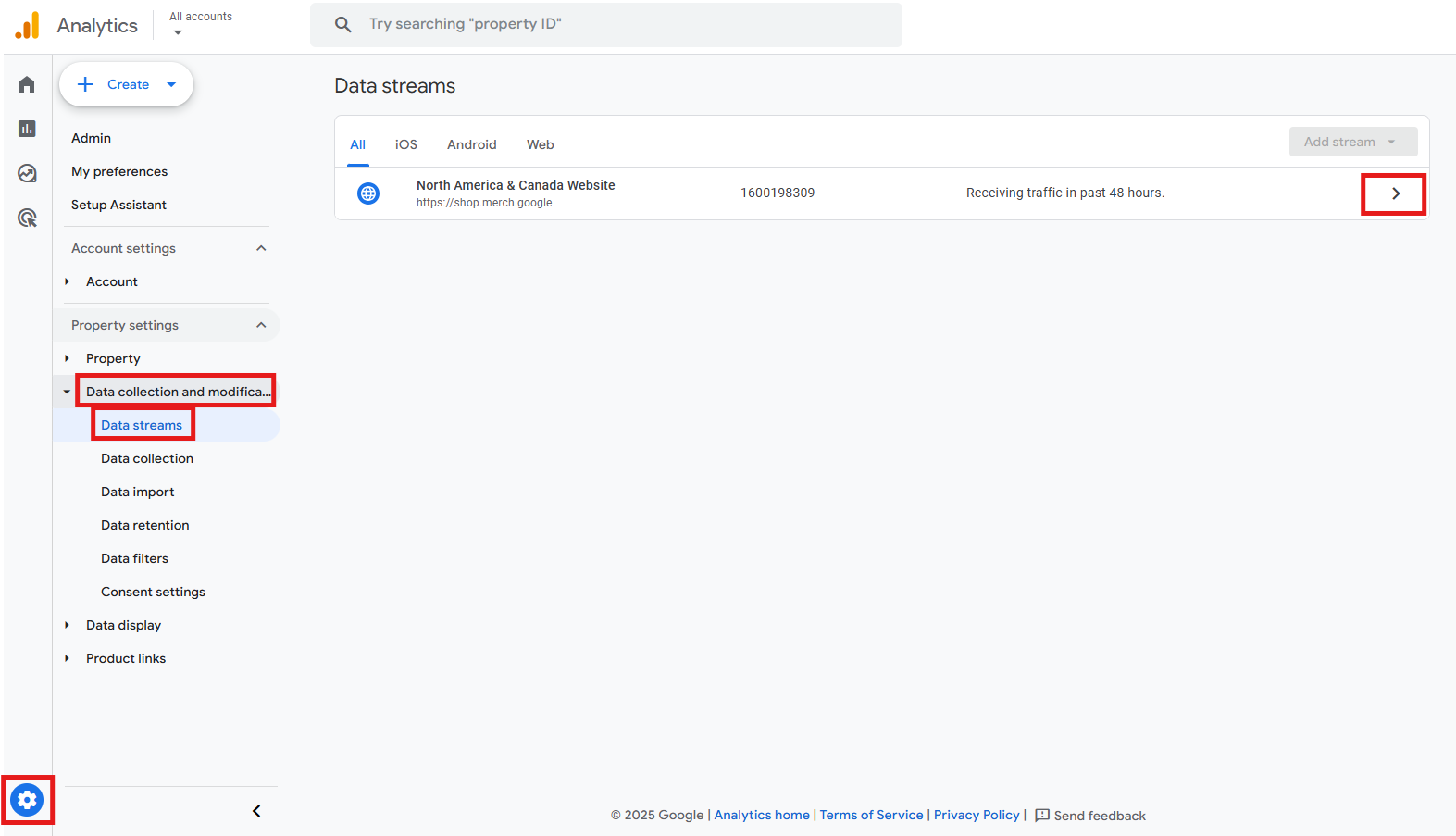
- Go to Admin > Data collection and modification > Data streams > Select your domain.
- In the Google tag section, click on Configure tag settings.
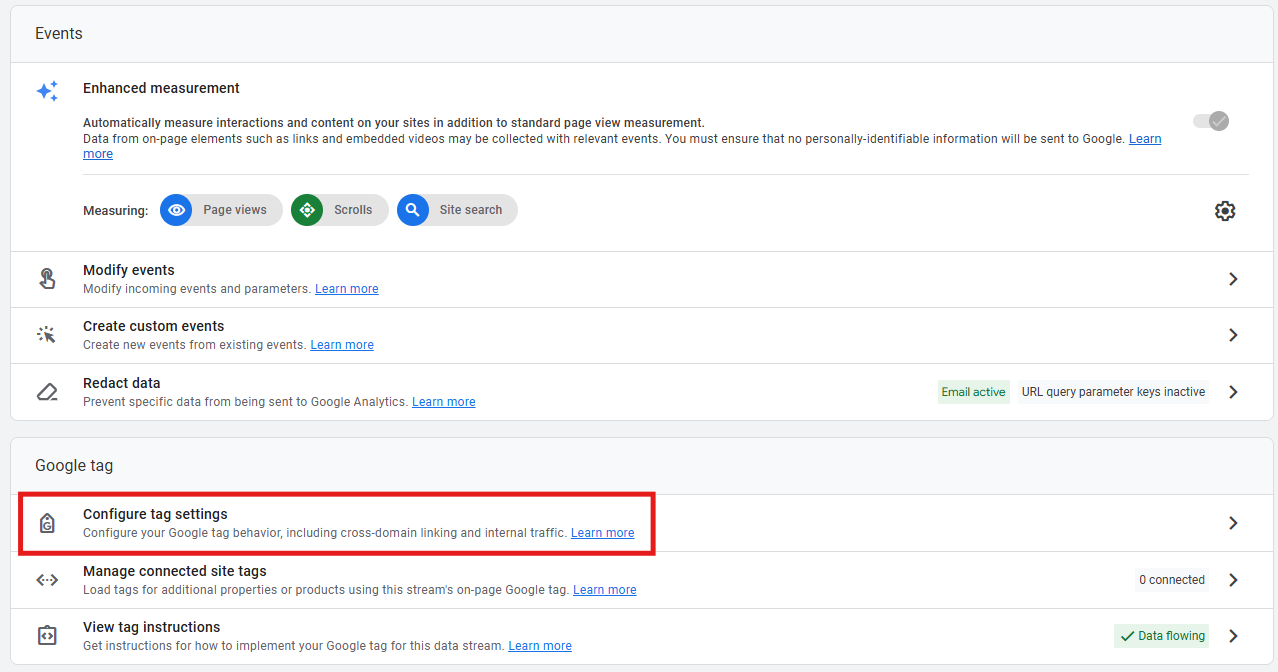
- Under Settings, expand on “show more” and then select List unwanted referrals.
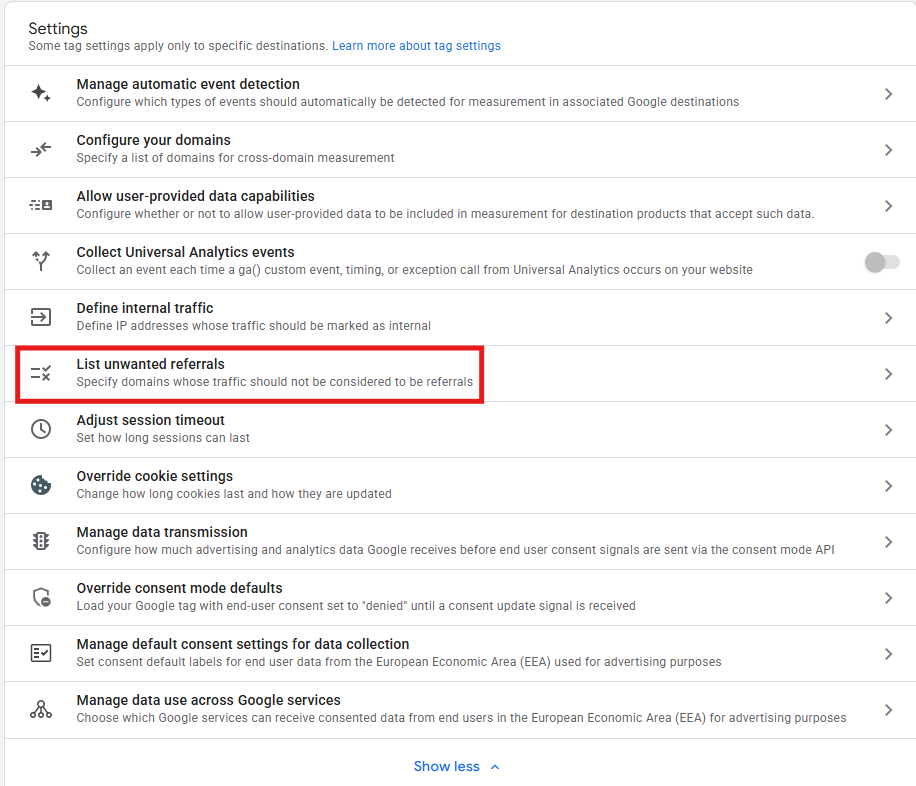
- Add all the domains you wish to exclude from referral reporting and save.
Final thoughts
GA4’s referral traffic tracking provides a great chance to see which links from other sites are genuinely driving results and which aren’t. Use this valuable data to reach out to current or potential partners, replicate what works, improve what doesn’t, and develop strategies to make backlinks more effective for your business.