Many people get a bit confused about what key events and conversions mean in GA4. They are slightly different, but you need to be clear on what’s what if you are going to properly manage your GA4 and Google Ads setups, and achieve the results you want. So, let’s get to it.
Events vs. Key events vs. Conversions
In GA4, everything counts as an event. Literally any activity you send to GA4 – like someone viewing a page (page_view), submitting a lead form (generate_lead), or making a purchase – is considered an event. Events can also include parameters to provide more details, such as value, currency, or a form’s ID.
A key event (formerly known as “conversion” in Analytics) is an event you’ve already got, but you’ve marked as being extra important to your business. Once you do that, GA4 will handle this event as a conversion in reports and attribution. So, in GA4, key events and conversions are the same thing; it’s just the name that’s changed.
Google Ads, though, does still use the concept of conversions. Once you link GA4 to Google Ads and bring over your GA4 key events, they’ll appear in Ads as conversions to use in reports and to decide how to make your bids.
Why did Google change the name?
According to Google itself, the renaming was done to make a clearer distinction between Google Ads and GA4:
“Previously, important events that were marked as conversions in Analytics were measured differently from how Google Ads conversions are measured, leading to discrepancies between Google Ads and Analytics. From now on, events that measure actions that are important to the success of your business are now called ‘key events.’ A ‘conversion’ now refers to an important action that you want to use to measure the performance of your ad campaigns and optimize your bidding strategy.”
What you should know about events
1) Types of events
GA4 gets event data in several ways:
-
Automatic events
By default, Google sends you some events automatically, and these give you a simple idea of how people get around your site. For example, it registers when someone has their first visit (first_visit), looks at a page (page_view), begins a session (session_start), or is actively using your website (user_engagement).
-
Enhanced Measurement
Beyond those basic events, you can switch on Enhanced Measurement for each of your website’s data streams, and GA4 will then automatically record other events like scroll, click, file_download, or view_search_results.
-
Recommended events
Google also recommends specific events and parameters for common business use cases, especially e-commerce, to provide more detailed standard reports. These include events like purchase, add_to_cart, login, sign_up, generate_lead, or view_item.
-
Custom events
You can create your own events for specific actions in your business. These are more tailored to your needs, but they will require more setup work to get started. Booking a demo, subscribing to a newsletter, or requesting a quote are all examples.
2) Event anatomy
For each event, you must consider the name and parameters that best define it:
- Event name: the verb you send (e.g., purchase, generate_lead).
- Parameters: details that give the event meaning (e.g., value, currency, transaction_id, form_id, page_location).
- E-commerce events: item-level details go inside an items array (e.g., item_id, item_name, price, quantity).
3) Naming best practices
To make sure you’ll get the most accurate and consistent reporting, keep these suggestions in mind when creating a new event in GA4:
- Prefer Google’s recommended names first (e.g., purchase, not orderComplete).
- Use lowercase and snake_case for custom names and parameters (e.g., lead_type, page_section).
- Keep names short, descriptive, and stable. Don’t mix leadType in some places and lead_type in others.
- Avoid sending Personally Identifiable Information (PII). Make sure there are no e-mails, phone numbers, full names, etc., in parameter values.
- Reuse parameter keys across events where it makes sense (e.g., always use value + currency for monetary events).
4) Where events “live” in GA4
If you want to manage event configurations in GA4 or check related metrics, there are quite a few options to consider:
-
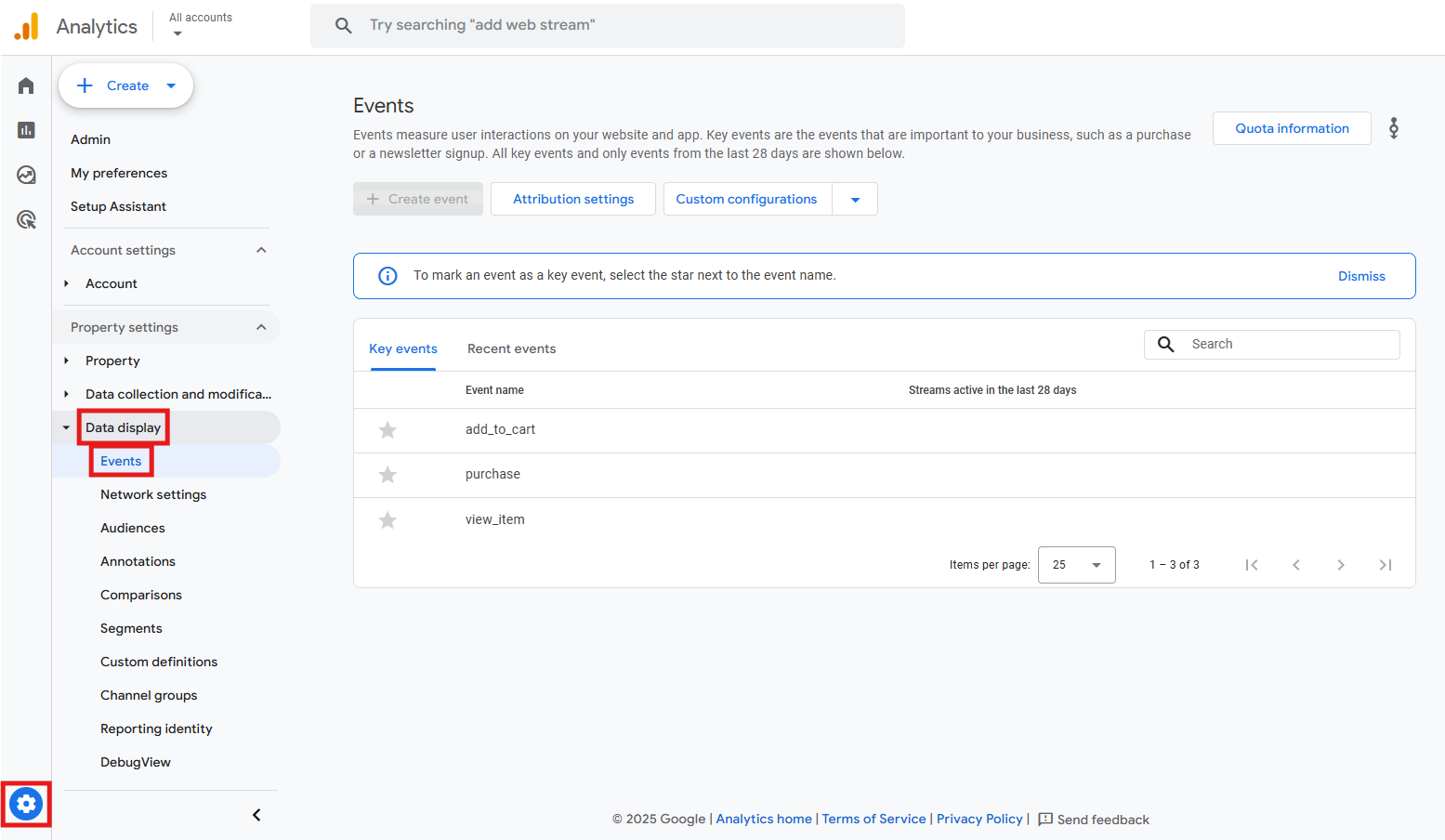
Admin > Data display > Events
The control room where you can create events, star/mark key events, set attribution settings or custom configurations.
-
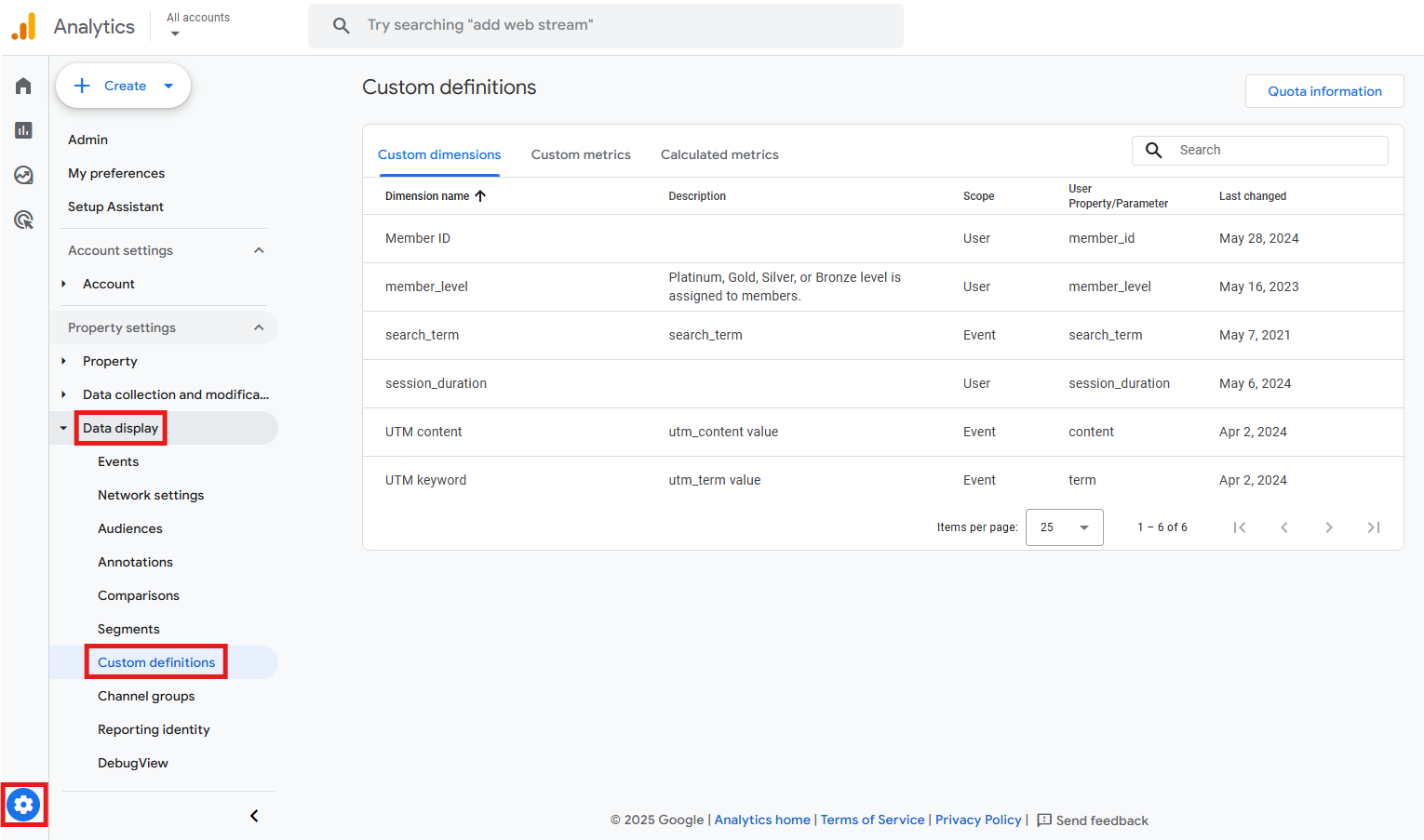
Admin > Data display > Custom definitions
It’s where you can register event parameters and user properties to make them visible in standard reports.
-
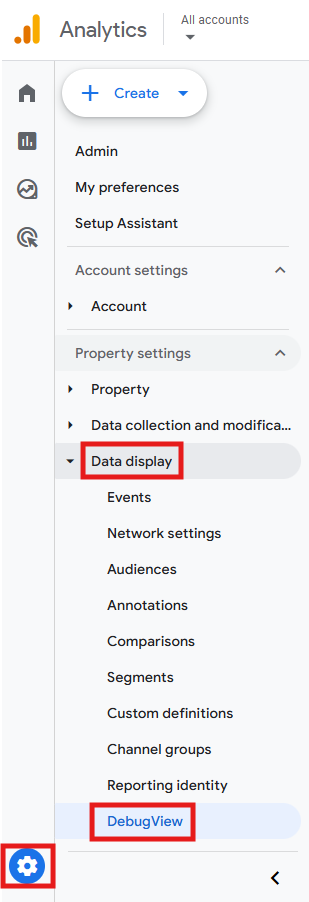
Admin > Data display > DebugView
A feature designed for Quality Assurance (QA), where you can watch events and parameters in near-real time while you test.
-
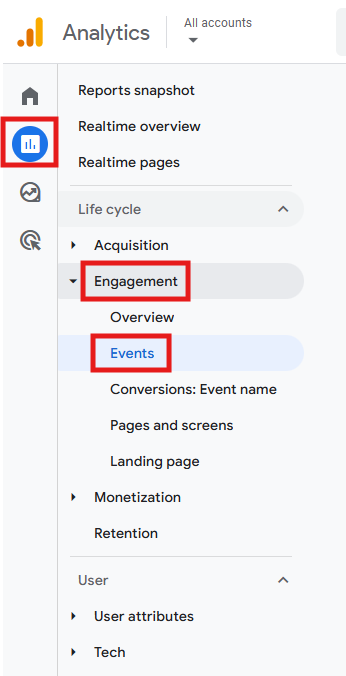
Reports > Engagement > Events
You can quickly check high-level volumes and trends for each event name.
-
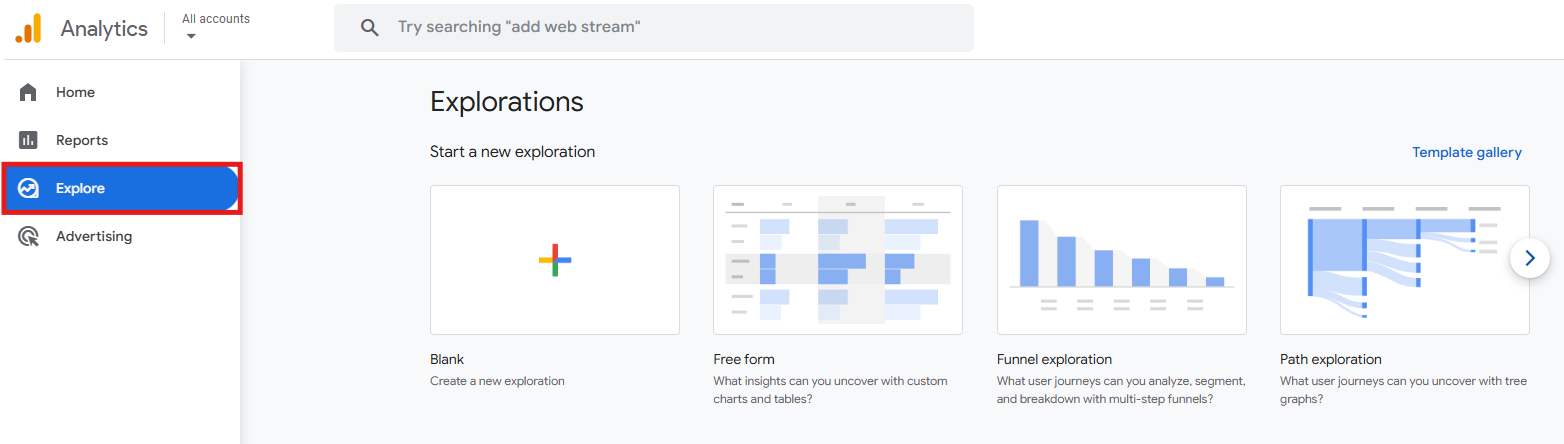
Explore
The Explore feature lets you build deeper tables/funnels with your event and parameter dimensions once they’re registered.
What should be a key event?
Only actions directly tied to revenue or with a very clear conversion intent should be flagged as key events. This covers:
-
Direct business outcomes
In e-commerce, a purchase is the most important key event. For subscription or publishing businesses, it could be subscribe, complete_signup, or start_trial.
-
Critical service moments
Certain metrics, such as upgrade_plan, activate_account, or reach_onboarding_milestone, could be key events, but only if they clearly lead to paid conversion or at least customer retention.
-
High-intent milestones Events like generate_lead (for qualified form submissions), begin_checkout, add_payment_info, or add_shipping_info (for e-commerce) are strong indicators that a purchase may occur, though they do not guarantee revenue. Therefore, they need to be used carefully.
Tip: if people abandon the process between starting checkout and actually buying something, leave those intermediate steps as regular events. Only mark them as key events when you have a clear way to use them to make bids or improve performance.
What should be kept as a regular event?
Anything that shows someone is interested, but doesn’t represent success for the business in itself. This includes:
-
Low-intent interactions
Actions like generic click, scroll, or page_view (even if that page is the contact page).
-
FYI actions
Events like file_download, video_start, or view_promotion fall into this category unless they can be proven to generate revenue.
Tips to define and configure key events
Before going through the actual setup of your key events, consider a few suggestions that will save you time and frustration later:
-
Keep the key events list tight
Too many key events dilute optimization. Three to seven per property is a healthy range, and more than that will usually make your results look better than they are.
-
Pick the right counting method
Use “Once per event” for all new key events (this is Google’s recommendation and it captures every occurrence, whether it’s a purchase, lead submission, or sign-up). Only switch to “Once per session” (considered legacy) if you need to match old Universal Analytics (UA) counting.
-
Add value where it matters
Add value and currency parameters to key events that actually drive revenue, such as purchases, paid signups, or qualified leads with modeled value.
-
Document the “why”
Write down why you’ve chosen each key event, who’s responsible for it, where it’s being used, and review this information regularly.
How to set up key events
Now let’s tell GA4 which events count as key events and how to count them:
- Go to Admin > Data display > Events.
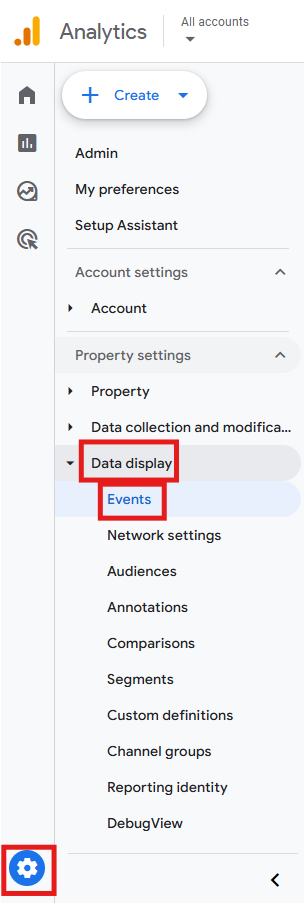
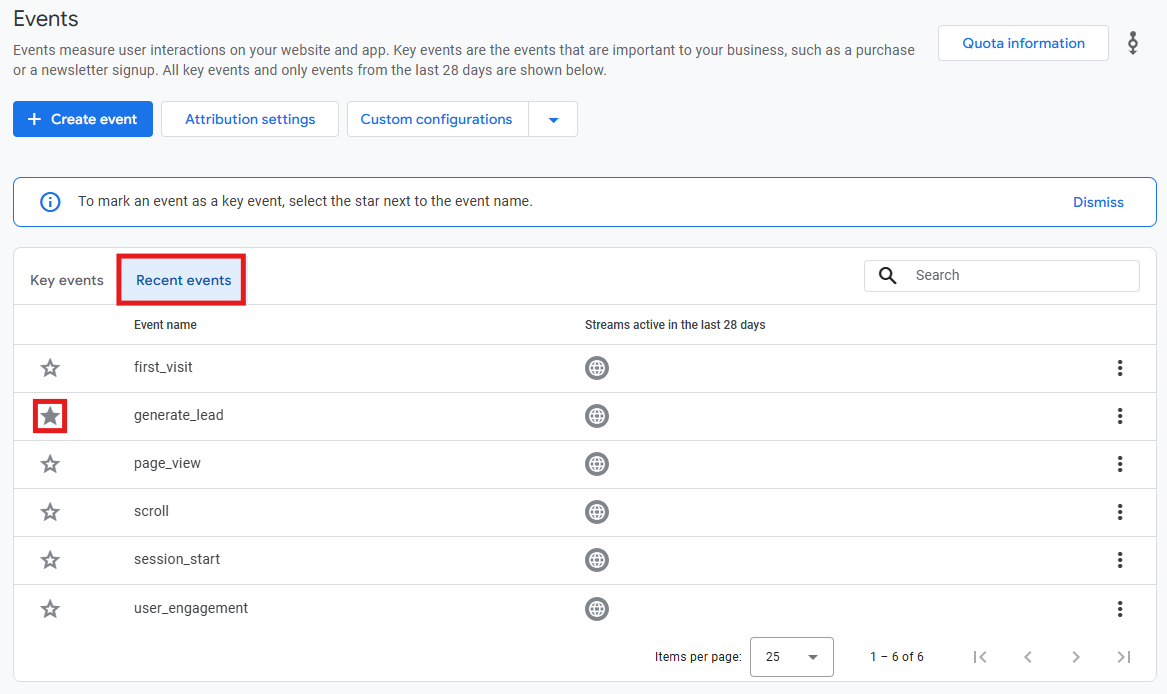
- Find the event in the “recent events” list – it appears only after GA4 has received it at least once, so if it hasn’t fired yet, trigger it via your website. Then, toggle the star icon to mark the event as a key event.
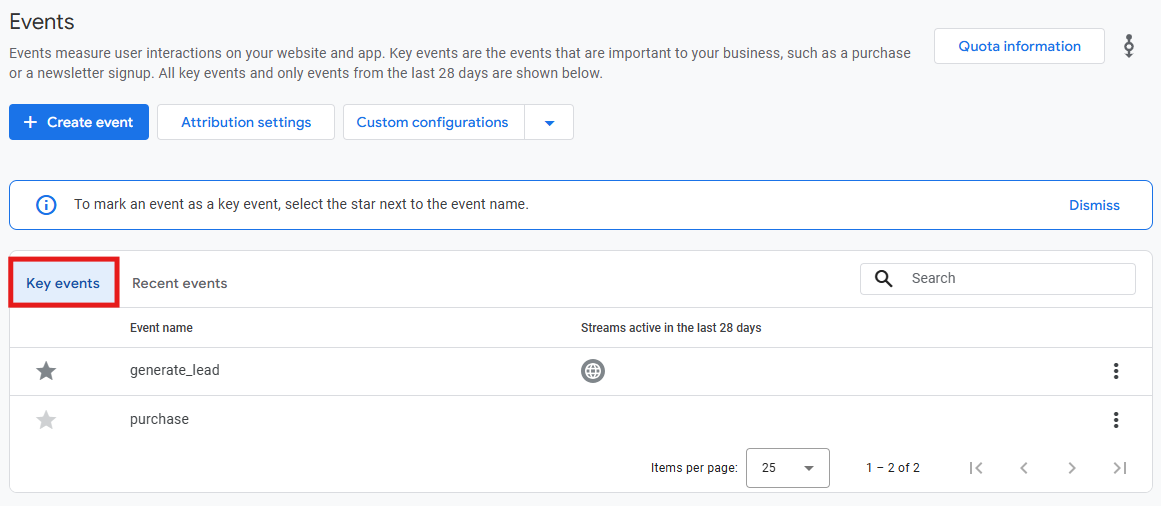
- In the “key events” list, you can check which events you’re currently counting as conversions. You can also unmark them as key events by clicking the star icon again.
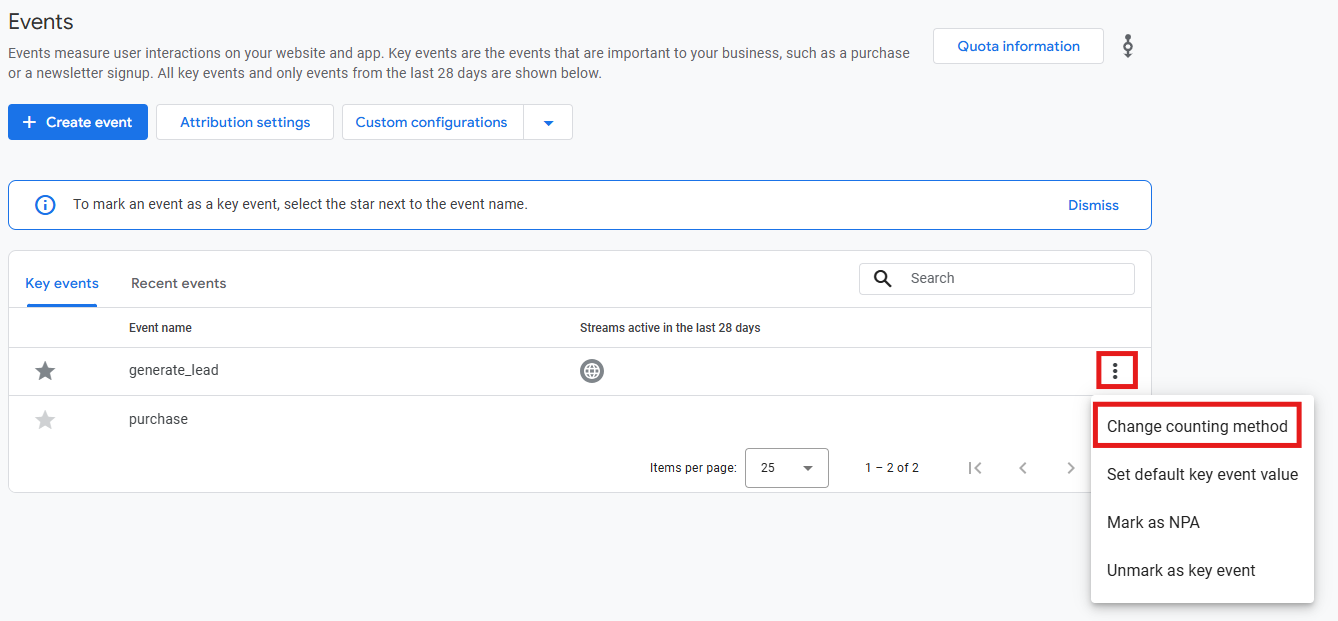
- By default, GA4 counts a new key event “Once per event”, but you can change it (note that key events migrated from UA goals default to “Once per session”). To do that, click the three-dot icon next to that event, then select Change counting method.
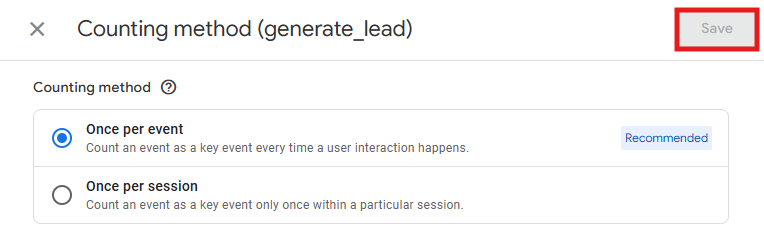
- Pick either Once per session (use for one-off outcomes per visit, like generate_lead or complete_signup); or Once per event (use for repeatable actions like purchase or add_to_cart). In the end, save.
Keep in mind: marking (or unmarking) an event as a key event affects reports from that moment forward, so past occurrences won’t suddenly appear in conversion reports. Changing the counting method affects only future data.
Key events data: where to find it?
At the beginning of the article, we saw where events – as a whole – live in GA4, so now it’s time to focus on key events. Where exactly can we find key events data in GA4 reporting?
-
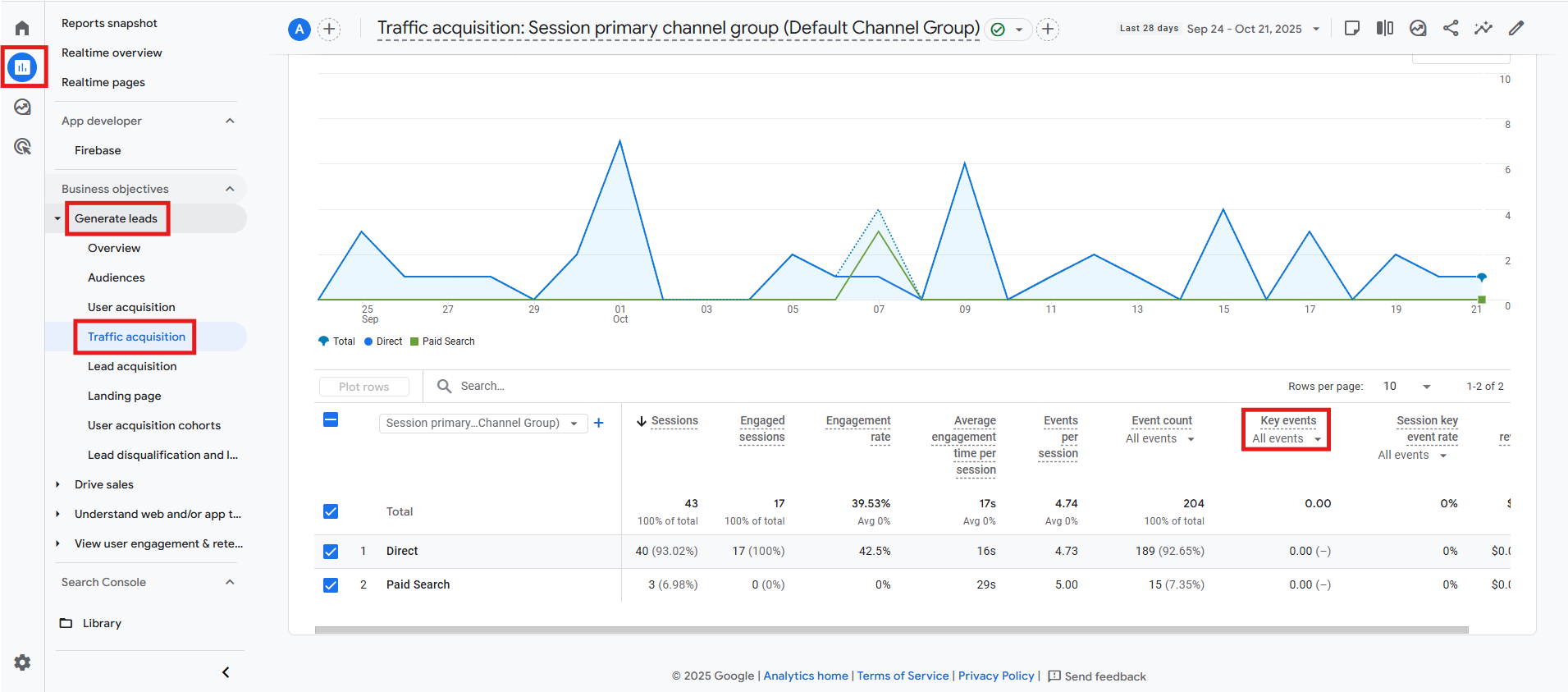
Reports > Generate leads > Traffic acquisition
In the main table, you’ll find a column for key events.
-
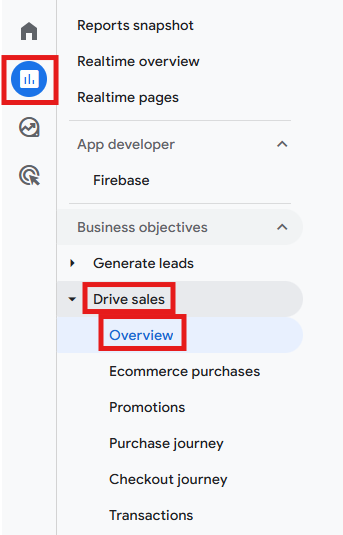
Reports > Drive sales > Overview
Key events data will also appear here if you have implemented e-commerce tracking.
Tip: You can always use the Explore feature in GA4 to build custom reports that show data on key events that best represent your website/business.
Google Ads: importing key events as conversions
1) Prerequisites
If you want to import your GA4 key events as conversions in Ads, first consider these prerequisites:
- GA4 and Google Ads are linked: if you still need to do this, check out the details in our “Linking GA4 with Google Ads: setup, alternatives, and best practices” article.
- Key events are starred in GA4: we went through how to do this in the previous section.
- You have Administrator or Editor role in GA4: you need this to be able to create conversion actions.
- Auto-tagging is ON in Google Ads: recommended, so clicks line up with GA4 sessions.
- There is recent data: the key event should have recent hits in GA4, or it may not appear in the Ads import list.
2) Importing process
If all those things add up, here’s how to bring your key events into Google Ads:
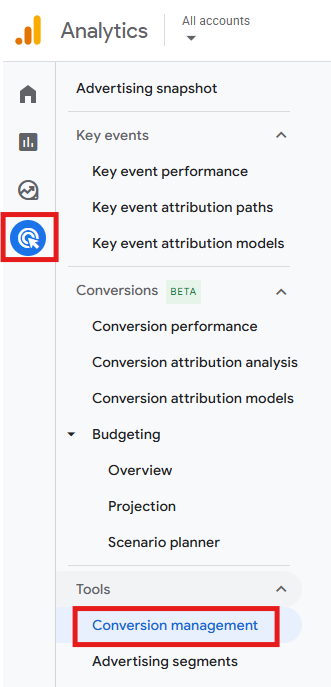
- In your GA4 property, go to Advertising > Conversion management.
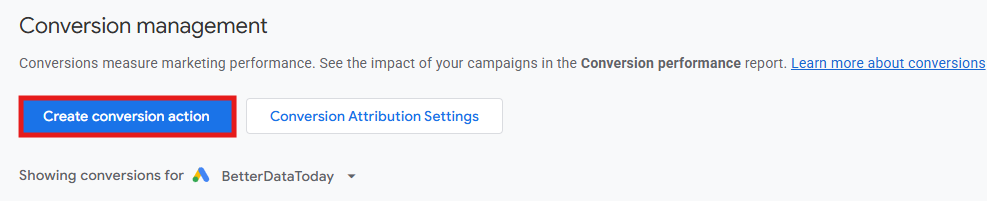
- Click Create conversion action.
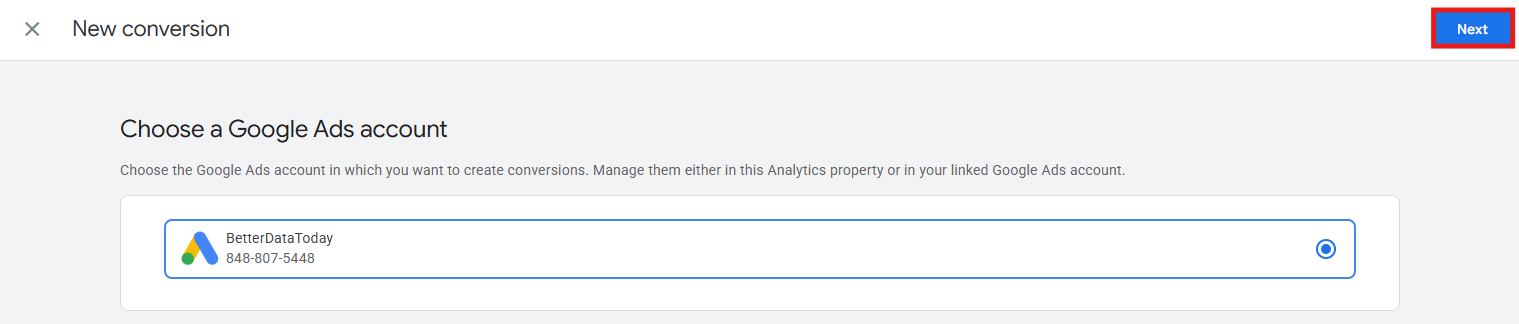
- Choose the Google Ads account and click Next.
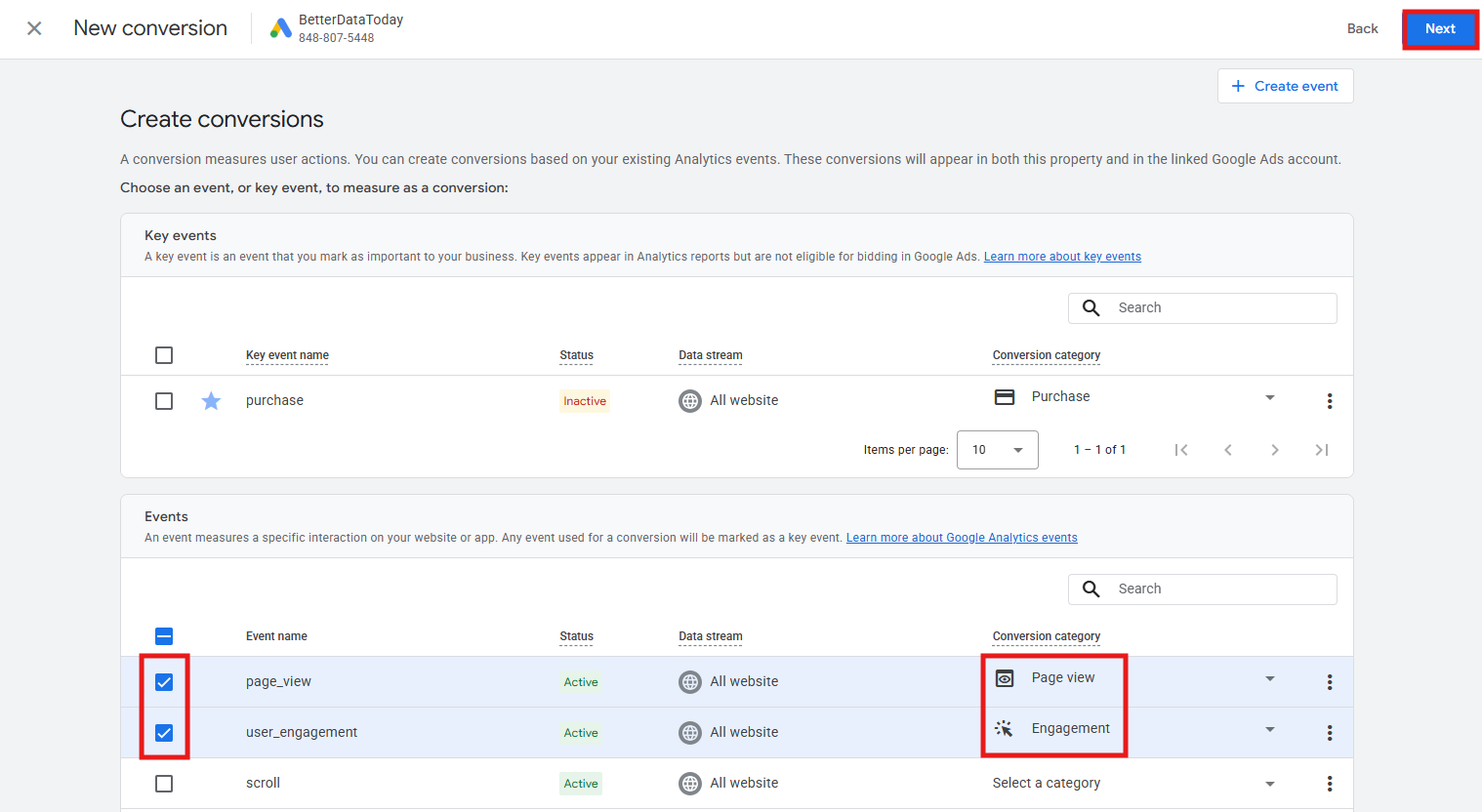
- Select the events or key events you want to import as conversions into Google Ads. If prompted, choose a category that best matches each event (e.g., Purchase, Submit lead form, Contact). If nothing’s a perfect match, choose the next best option. Click Next.
- Review your selected conversions, then save.
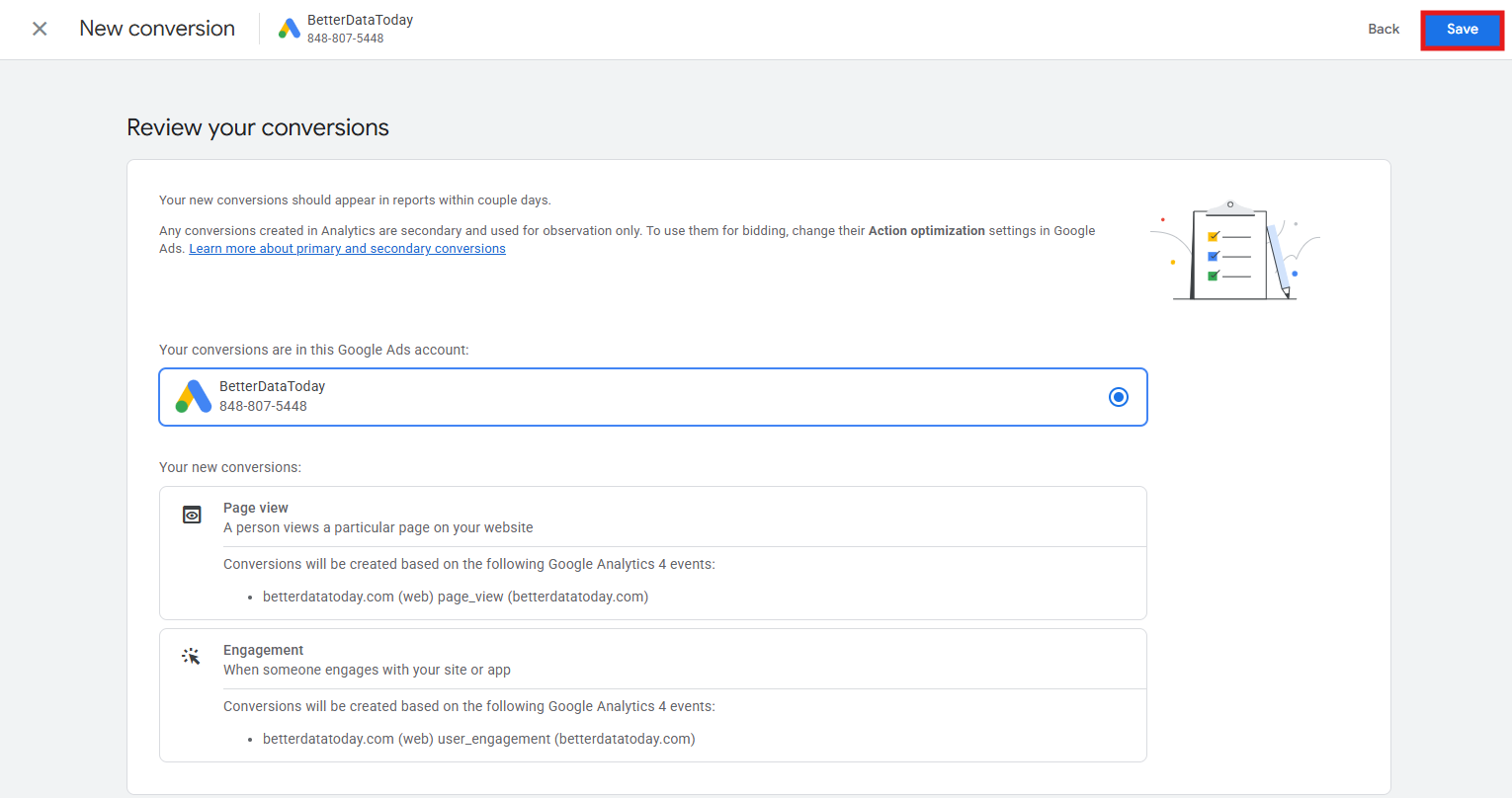
Keep in mind: conversion actions created this way are automatically set to “secondary” in Google Ads, to prevent double-counting against any conversions you’re already tracking natively. Also, note that it can take up to 24 hours for the imported data to show up in Google Ads, and historical data from before the import won’t be included.
3) Configuration tips
To make sure your Google Ads conversions perfectly match Google Analytics 4 key events, pay attention to these details when importing each key event:
- If you want to bid toward a particular conversion action, set it “primary” in Google Ads.
- Leave others as “secondary” for QA purposes.
- Align the counting method and conversion window with GA4.
Common GA4 – Google Ads discrepancies
Even with a clean setup, GA4 key events and Ads conversions won’t always line up. These are some of the most common mismatches and how to fix them:
| Issue | Why it happens | Fix |
|---|---|---|
| Key event totals don’t add up | Marking an event as a key event isn’t retroactive in standard GA4 reports. | Mark key events early. For history, use Explorations or BigQuery, but expect standard key events reports to start only from the toggle date. |
| Trends break after renaming an event | Renaming lead_submit to generate_lead, for example, creates a new event name. GA4 treats names as unique IDs. | Go to Admin > Data display > Events > Custom configurations drop-down > Modification. Remap the event name. Update custom definitions and Ads imports. |
| GA4 vs. Ads counts don’t match | Different attribution models/lookback windows between. | Set the desired attribution windows/models in GA4 for each KPI. In Ads, align with GA4’s intent. |
| Inflated counts (duplicates) | Triggers fire twice, or Enhanced Measurement duplicates custom events. | Tighten Google Tag Manager triggers and disable overlapping Enhanced Measurement items you track manually. |
| No value/currency on key events | Value/currency not sent for non-purchase key events. | Send value + currency for monetizable key events. Register custom dimensions/metrics if you need them in standard reports. |
| Lower counts due to consent/ad blockers | Consent Mode limits data under denied storage. Blockers can suppress hits. GA4 may model totals (where allowed). | Fire your Consent Management Platform (CMP) tag on Consent Initialization before the Google tag. |
| Event not available to import into Ads | It’s not marked as a key event in GA4, there are no recent hits, or the linking process is incomplete. | Mark as a key event, generate fresh hits, confirm the GA4 - Ads product link, then reopen the import flow. |
Final thoughts
Be picky and sensible with key events. Don’t make every click into one; choose only the few actions that really prove revenue or a clear conversion intention.
Having a good set of well-planned key events and a clean connection between GA4 and Google Ads will make your reporting easier, your bidding better, and your optimizations quicker.