Do you see a bunch of sessions labeled “Unassigned” in your traffic reports? This happens when GA4 can’t link those visits to any of its predefined channel groups, which means you can’t actually see where those sessions came from. If you’re running paid campaigns, that is costing you money.
Luckily, you can solve most of the problems behind this “Unassigned” phenomenon once you know what to look for. Let’s go through the most common causes and how to fix them.
What does “Unassigned” mean in GA4?
GA4 uses something called default channel group to organize your traffic sources into categories you can work with, such as Organic Search, Paid Social, Email, Direct, etc. There are currently 18 default channel groups, and each one has specific rules.
For example, if someone clicks a link from Facebook and your URL includes “utm_medium=cpc” (“cpc” stands for “cost per click”, and is used in UTM tracking to identify paid search or paid advertising traffic), that session gets assigned to Paid Social. If someone comes from Google search without any paid parameters, that’s Organic Search.
The channel grouping rules look at three main things:
- UTM parameters in your campaign URLs (source, medium, campaign).
- Traffic source information, like referrer and domain.
- Google Ads data, if you have auto-tagging enabled.
So, when a session doesn’t match any of the predefined rules, GA4 labels it as “Unassigned” because it doesn’t know which channel group to assign it to.
What is causing “Unassigned” traffic?
Before you can fix anything, you need to know what’s being classified as “Unassigned”. Here’s how to find out:
-
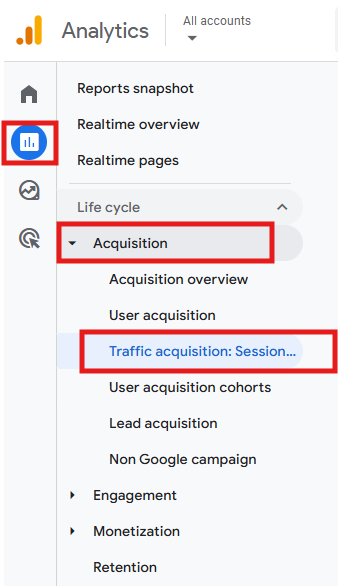
In GA4, go to Reports > Acquisition > Traffic Acquisition.
-
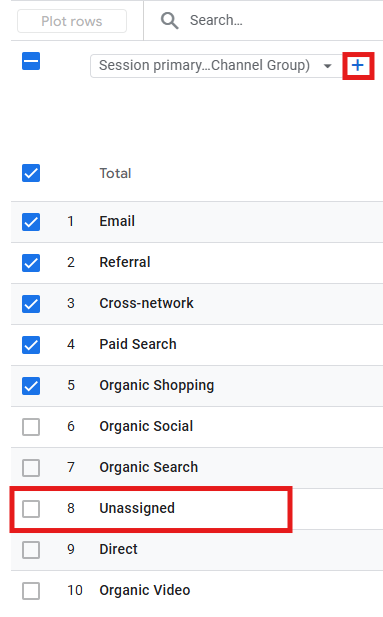
The default dimension in that report is Default channel group. If you see “Unassigned” in the table below the graphic, click the plus icon to add Session source / medium as a secondary dimension.
-
Then search for “Unassigned” in the filter box above the table. Now you can see exactly which source/medium combinations are getting labeled as “Unassigned”. That tells you where you should start troubleshooting.

Top 10 “Unassigned” causes and how to fix them
These are 10 common explanations for why the “Unassigned” label is showing up in your reports:
1) Custom UTM parameters that don’t match GA4’s guidelines
This is the most common reason for “Unassigned” traffic (and usually the easiest to fix). If you’re tagging links with custom values like “utm_medium=pdf” (for ebook downloads), or “utm_medium=newsletter” (for email campaigns), GA4 doesn’t know how to process those.
According to Google’s channel grouping definitions, email traffic needs to use “utm_medium=email” (or e-mail, e_mail, or e mail) to get assigned to the “Email” channel. The same goes for other channels. If you’re running social media ads and using “utm_medium=social-ad” instead of the recognized values (like “cpc”, “ppc”, or “paid”), that traffic shows up as “Unassigned”.
How to fix it: confirm that your UTM tagging is following Google’s official channel rules. The documentation lists exactly which values GA4 recognizes for each channel.
If you’ve already been using custom values for months and you want to keep them, create a custom channel group in GA4 instead. Go to Admin > Data display > Channel groups > Create new channel group. This way, you build your own logic, which can be applied to historical data.
Just remember that “Unassigned” will still appear in the default channel group reports. Your custom group will show the correct attribution, but the default reports won’t change.
2) Incomplete or missing UTM parameters
GA4’s channel grouping rules look at utm_source and utm_medium together, and some rules also check utm_campaign. So, if you’re only tagging URLs with one parameter (like utm_campaign=spring-sale) without the source and medium, GA4 can’t classify the traffic properly.
When source and medium are missing, they show up as “(not set)” in reports, which then gets categorized as “Unassigned”.
How to fix it: always use at least three UTM parameters on every campaign URL:
- utm_source (where the traffic comes from, like “facebook” or “newsletter”).
- utm_medium (how it got there, like “cpc” or “email”).
- utm_campaign (which campaign, like “spring-sale”).
Build your URLs with Google’s Campaign URL Builder to make sure you’re including all required parameters.
3) Measurement Protocol without proper session attribution
The Measurement Protocol is designed to enrich the data you’ve already collected. This said, if you’re sending events to GA4 from a server using the Measurement Protocol (for example, tracking offline conversions or CRM data), those events need to include both client_id and session_id to connect them to the user’s actual session on your site, otherwise GA4 can’t attribute the event to any marketing channel.
How to fix it: if developers are sending events via Measurement Protocol, make sure every request includes:
- client_id (the GA4 client identifier).
- session_id (the ID of the session you want to link this event to. This is what connects the Measurement Protocol hit to a specific session that GA4 already knows about from client-side tracking).
- timestamp_micros (optionally, use this when sending events that occurred up to 72 hours ago).
4) Events firing before the Google tag loads
This is especially common with server-side Google Tag Manager (GTM) setups. When an event fires before the Google tag initializes, it doesn’t have access to the server_container_url parameter or other configuration settings, so those events might not have proper session attribution. In other words, this timing issue causes events to be sent directly to GA4 without the proper session context, resulting in “(not set)” attribution.
How to fix it: set your Google tag to fire on the “Initialization - All Pages” trigger in GTM. Then delay your event tags to fire on “DOM Ready” or “Window Loaded” triggers instead of “Pageview”. This ensures the configuration loads first.
If you’re using server-side GTM, include the server_container_url parameter in every GA4 event tag, not just the Google tag. The best way to do this is to add it to your GA4 settings variable, so it applies to all tags.
5) Data processing delays
GA4 can take 24 to 48 hours to fully process traffic attribution data. If you’re looking at today’s sessions, you might see inflated “Unassigned” numbers because GA4 hasn’t finished processing yet.
How to fix it: wait at least 48 hours before analyzing new campaign data. Check the same date range a day or two later, and you’ll see that the “Unassigned” sessions usually drop significantly. This is particularly important when you’re launching new campaigns or making tracking changes.
6) Google Ads auto-tagging is not enabled
If you’re running Google Ads campaigns and auto-tagging isn’t turned on, your paid traffic might show up as “Unassigned” or get misclassified as “Organic Search”.
Auto-tagging is responsible for automatically adding the Google Click Identifier (GCLID) to your URLs, which tells GA4 exactly which ad campaign drove each click. However, keep in mind that Safari’s Intelligent Tracking Prevention (ITP) limits the lifetime of JavaScript-set first-party cookies to 7 days, which means that the cookie storing the GCLID may expire before a conversion happens. This is why relying on auto-tagging alone may not be enough for this browser.
How to fix it: enable auto-tagging in Google Ads (Admin > Account settings > Auto-tagging). Then also add manual UTM parameters to your Google Ads URLs as a backup.
Also, make sure Google Ads is properly linked to your GA4 property (in GA4, go to Admin > Product links > Google Ads links).
7) Audience triggers creating attributed sessions
The audience triggers feature in GA4 automatically fires events when users meet certain conditions. Sometimes, these backend-generated events create sessions with no traffic source attribution because they’re processed on Google’s servers, instead of during an active user session.
This particularly affects predictive audiences. When GA4 fires an audience trigger event for a predicted purchaser or someone likely to churn, that event might not be tied to any marketing channel, which then results in “(not set)” attribution.
How to fix it: there is no real fix for this one. It’s a known limitation of how audience triggers work. If you’re using them, accept that some of your “Unassigned” traffic comes from this feature.
If you’re unsure, you can verify this is the cause by checking if your “Unassigned” sessions have very low engagement rates and seem to correlate with audience trigger events you’ve configured.
8) Recurring subscription payments
If you track subscription renewals in GA4, those automatic payments will almost always show up as “Unassigned”. A recurring payment that happens automatically on the 15th of each month, for instance, isn’t connected to any marketing campaign. These events are typically sent via Measurement Protocol without an active session context.
How to fix it: you can’t really fix this one either, because it’s not something that’s broken. Recurring payments happen in the backend without user interaction, so “(not set)” attribution is actually correct.
If this scenario applies to you, consider tracking recurring revenue in a separate system rather than GA4, or segment it out using a custom dimension so you can analyze new purchases separately from renewals.
9) Missing session_start event
The session_start event is automatically fired by GA4 when a user begins a session, and it contains important data like source and medium. When this event is missing or doesn’t fire properly, GA4 can’t determine how the user arrived, leading to “(not set)” attribution.
This often happens with server-side GTM setups where the session_start event gets excluded or filtered out before reaching GA4.
How to fix it: check if session_start events are appearing in your GA4 DebugView or in the BigQuery export. If they’re missing, review your GTM configuration to ensure the Google tag fires properly on all pages and that you’re not accidentally blocking or filtering the session_start event in your server-side container. If you’re using server-side tagging, verify that your GA4 client is configured to send all automatic events, not just custom ones.
10) Bot traffic
It’s true that most bot traffic typically appears as “Direct” in GA4, but some bots generate sessions without proper attribution data, resulting in sudden spikes in “Unassigned” traffic with “(not set)” source/medium.
Bot traffic is particularly problematic because it inflates the number of sessions without providing any meaningful attribution or engagement data. You’ll often see these sessions have extremely low engagement rates and unusual traffic patterns.
How to fix it: GA4 doesn’t have built-in tools for filtering out bot traffic in reports, so you’ll need to address this at the infrastructure level. You can, for instance, work with your developers to identify the IP addresses generating the spikes and either block them at the server level or use GA4’s internal traffic filters (Admin > Data collection and modification > Data streams > select your web stream > Configure tag settings > Define internal traffic). If you’re using server-side GTM, you can create blocking triggers based on IP addresses to prevent bot events from reaching GA4.
When “Unassigned” is actually okay
We’ve already mentioned a couple of examples of when “Unassigned” traffic is not actually a problem that needs fixing. Here’s a recap and some other scenarios when you should simply accept and move on:
-
You’re intentionally using custom tracking that serves your business needs
If you’re tagging internal tools, PDF downloads, or mobile app links with custom medium values that GA4 doesn’t recognize, that’s actually fine. You know what those values represent and what that traffic is, so you can just segment it with custom channel groups in case you need clean reports.
-
Small volumes of unexplained traffic
If “Unassigned” represents less than 2 or 3% of your total sessions and you’ve checked all the common causes, you can stop investigating. Your time is better spent optimizing the 97% you can measure accurately.
-
Expected backend behavior
Subscription renewals processed server-side, audience trigger events, or offline conversion imports via Measurement Protocol often can’t be linked to a specific marketing channel, and there’s not much you can do about it. However, if this “Unassigned” traffic does not prevent you from identifying which campaigns drive conversions and making decisions about your marketing budget, then a small percentage of unattributed sessions won’t hurt your overall analysis.
Final thoughts
If you’re “suffering” from “Unassigned” traffic in your GA4 reports, start by identifying which source/medium combinations are being labeled that way, then work through the most likely causes for your setup.
Keep in mind that not every “Unassigned” session needs fixing, so focus your troubleshooting on the traffic that matters: the campaigns you’re actively running and the attribution data you need to make business decisions.